How to Make Your Ancestors Smile Using AI (Step-by-Step)
A practical guide to animate old photos into natural, shareable videos—without uncanny artifacts.
Old family photos were never meant to stay still forever—but most “old photo animation” attempts fail for the same reason: the input isn’t clean enough, and the motion isn’t restrained enough. If you want a result that feels respectful (not creepy), think like a restorer first and an animator second.
Two useful anchors before we start:
- The U.S. National Archives recommends scanning photos at 600 ppi for long‑term preservation (higher‑quality input = better AI motion). (NARA Digitization Specifications)
- Short‑form video now represents 57.6% of time spent in social media apps—so a 5–8 second “living photo” is one of the easiest ways to get family members to actually watch and share. (DataReportal: Digital 2026 Deep‑Dive)
Below is the exact workflow we use with Animate Photo AI to turn a single portrait into a smooth, loop‑ready clip.
Step 1: Start with the cleanest scan (or phone capture) you can get
If you have a printed photo, scan it instead of photographing it.
- Target 600 ppi if your scanner supports it; 300 ppi is a workable minimum.
- Scan in color even if the photo is black‑and‑white (you’ll keep more tonal information).
- Clean dust and fingerprints before scanning—tiny specks become “floating noise” after motion.
If you only have a phone, the goal is to reduce glare and perspective distortion:
- Place the photo near a window (soft daylight), not under a ceiling lamp.
- Hold the camera perfectly parallel to the photo (no trapezoid shape).
- Capture at the highest resolution setting and avoid “beauty” filters.
Step 2: Restore before you animate (this prevents melted faces)
Most artifacts come from trying to animate damage:
- Scratches become moving lines.
- Creases turn into bending geometry.
- Low-resolution faces “swim” when the model tries to invent detail over time.
A fast restoration pass makes a huge difference:
- Crop to the subject (especially for portraits).
- Fix obvious defects (dust, tears, deep scratches).
- Increase local contrast around eyes, eyebrows, and mouth (the “anchor points” for motion).
- Optional: Upscale 2× if the face is small in frame.
Quick settings cheat sheet
Use this as a starting point—then adjust based on how stable the face looks.
| Photo type | Best motion intent | Motion strength | Clip length | Notes |
|---|---|---|---|---|
| Studio portrait | Portrait talk / micro‑expression | 1–3 | 5–8s | Keep camera locked to avoid warping collars and hairlines. |
| Outdoor portrait | Subtle motion + light drift | 1–2 | 5–8s | Let background stay mostly still; animate one element (hair, eyes). |
| Group photo | Minimal motion (blink/smile only) | 1 | 4–6s | More faces = more drift risk. Crop to 1–2 people if possible. |
| Damaged photo | Restore first, then micro motion | 1 | 4–6s | Don’t animate cracks; repair them before motion. |
Step 3: Animate in Animate Photo AI (the “control-first” way)
The fastest way to get a clean result is to give the model a single, clear intent.
- Upload the restored photo in Animate Photo AI.
- Pick a motion intent (start subtle): portrait talk, micro‑expression, or gentle camera drift.
- Generate → review → regenerate with small adjustments instead of rewriting everything.
Practical tips that reduce “uncanny” output:
- Start with motion strength 1–3 and only increase if the face stays stable.
- If teeth or eyelids distort, reduce motion before changing prompts.
- Keep backgrounds simple. Busy wallpaper patterns are motion traps.
- For sharing, export in 9:16 (Reels/Shorts) or 16:9 (YouTube) depending on where your family actually watches.
A prompt template you can copy (and why it works)
Old photos don’t need poetic prompts—they need constraints. A good prompt does three things: (1) names the tiny motion you want, (2) tells the model to preserve identity, and (3) explicitly stabilizes everything else.
Try this starter and adjust only one phrase at a time:
Subtle smile, gentle blink, preserve the original face, stable background, natural lighting, no warping, no camera shake.
If the photo is damaged, add: “do not animate scratches” (but remember the best fix is still restoration). If the output feels too “alive,” remove the smile and keep only a blink plus a micro head tilt (strength 1–2).
Troubleshooting in 30 seconds
- Eyes drift or change color: lower motion strength, increase contrast around eyes in the input image.
- Mouth looks uncanny: avoid teeth, keep mouth movement minimal, prefer a soft smile over “talking.”
- Background melts: crop tighter, choose minimal motion, and reduce camera movement first.
Step 4: Export, share, and keep it ethical
Old photos often include people who can’t consent. A few guardrails keep this fun and respectful:
- Only upload content you have permission to use, especially for minors and private portraits.
- Avoid sensitive images (medical, legal, or identifying documents).
- Share with context: include the original still photo in the caption, and describe what was changed (e.g., “subtle smile + blink”).
If your goal is to “make them smile,” the best results usually come from micro‑expressions (a blink, a soft smile, a tiny head tilt) rather than big movements.
FAQ (fast answers)
What scan resolution should I use for old photos?
Aim for 600 ppi when possible; it preserves detail that helps AI motion stay stable. (NARA Digitization Standards)
Why does the face look like it’s melting or changing identity?
Usually the input is too low‑detail (tiny face, blur, heavy damage), or motion strength is too high. Restore first, then animate with strength 1–3.
Can I animate a group photo?
Yes, but keep motion minimal (blink/smile only). For the cleanest result, crop to 1–2 subjects and animate shorter clips (4–6s).
Do I need a long prompt?
Not for old photos. Clear intent beats long text. Start with “subtle smile, gentle blink, stable background” and iterate.
Related resources
Author

More Posts
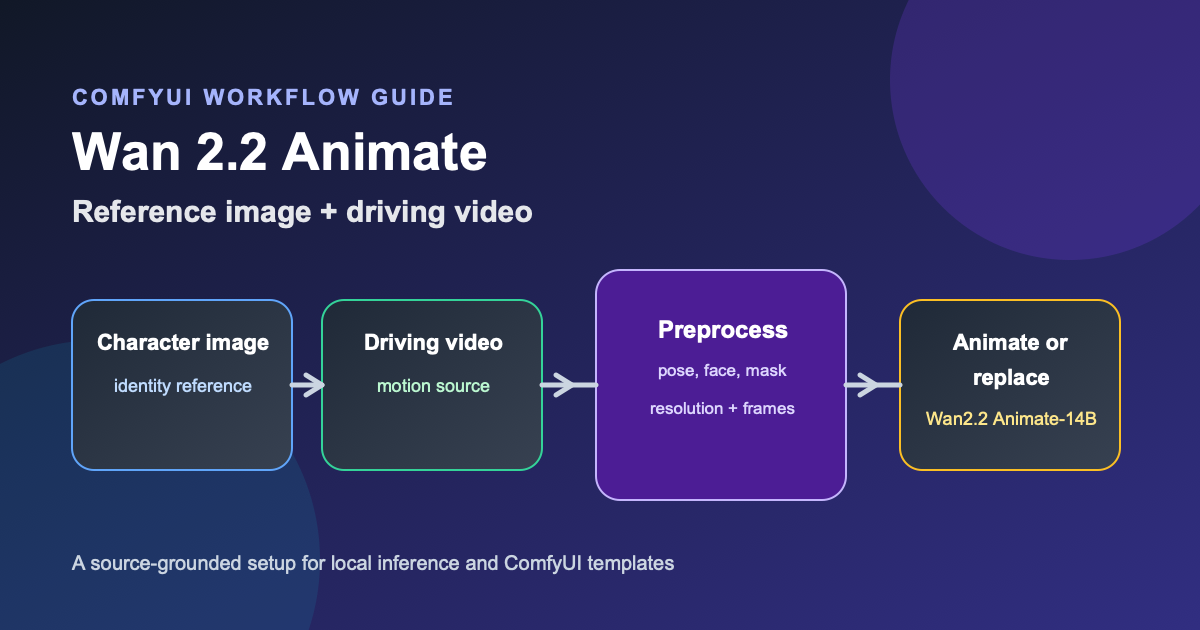
Wan 2.2 Animate Workflow: ComfyUI Guide (2026)
Build a Wan 2.2 Animate workflow in ComfyUI. Covers model files, preprocessing, animation vs replacement mode, VRAM planning, and troubleshooting.
Top 7 AI Image-to-Video Tools You Must Try in 2026
A practical shortlist of image-to-video generators—what each is best for, what to watch out for, and how to pick fast.
How to Animate a Picture
Learn how to animate a picture in Canva, Adobe Express, or an AI photo animator. Compare methods, then turn a still image into a short video.
Newsletter
Join the community
Subscribe to our newsletter for the latest news and updates