LogoAnimate Photo AI

オンラインで写真を簡単かつ簡単にビデオに変換

TwitterX (Twitter)YouTubeYouTubeEmail
製品
  • 特長
  • 価格設定
  • FAQ
ツール
  • Image to Video AI
  • Photo to Video AI
  • スケッチからビデオ AI
会社名
  • について
  • お問い合わせ
  • 順番待ちリスト
法的
  • クッキーポリシー
  • プライバシーポリシー
  • 利用規約

Earned Badges

All in AI ToolsDofollow.ToolsMossAI ToolsAIExtensionDeepLaunchShowMeBest AIZ-ImageAIBestTopStartupFastListed on Turbo0Twelve ToolsLovableAppFazierFeatured on Open-Launch600.toolsFeatured on toolfame.comNavFoldersNext LaunchFeatured on Findly.toolsBai.toolsToolsClaw
© 2026 Animate Photo AI All Rights Reserved.
Animate AIAnimate Photo
Animate Old Photos
画像から動画
テキストから動画

モデル

OLD PHOTO

JPG/PNG/WEBP up to 10MB, min 300px

Motion prompt (Optional)

Animate this old photo with respectful blinking, subtle breathing, and a gentle camera push. Preserve the original identity, pose, expression, clothing, and background.

アスペクト比

9:1616:91:1

長さ

5s8s12s

最近の生成

Related workflows

Explore more AI video tools

Move from a photo-specific task to broader image, reference, or prompt-based generation without leaving the same video workflow.

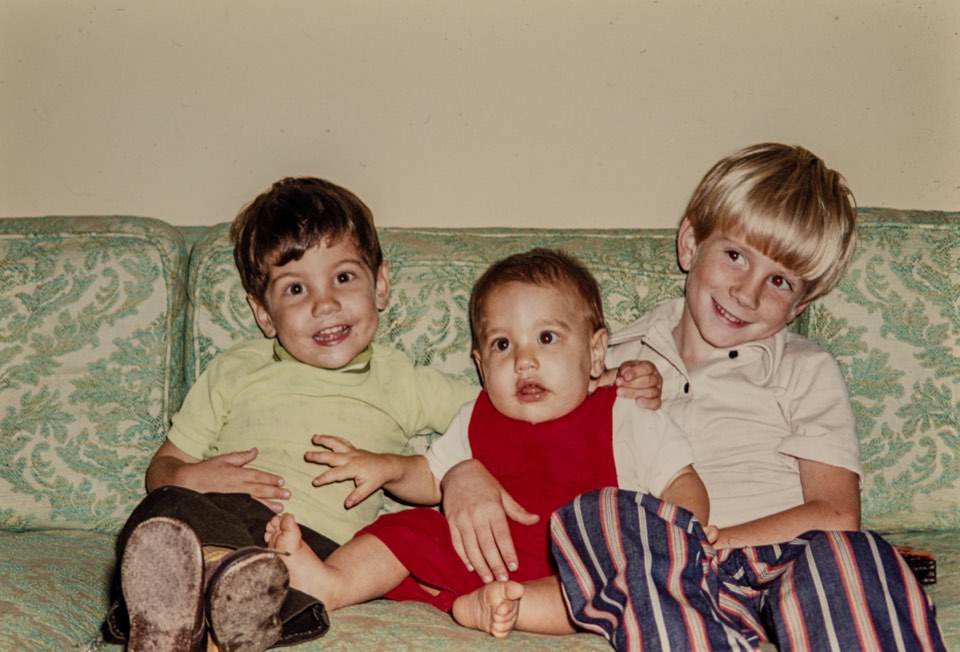
Family portrait ready for the photo to video tool

Photo to Video

Animate modern portraits, pets, products, and real photos.

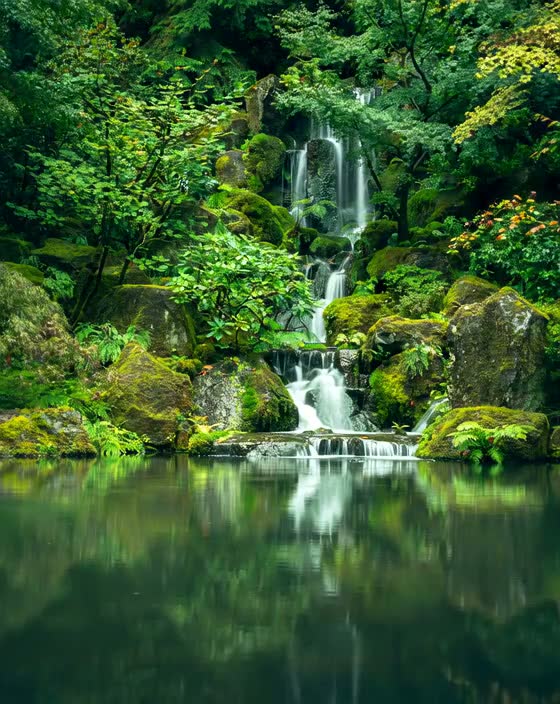
Animated waterfall example from the image to video tool

Image to Video

Add motion to artwork, product images, and scenery.

Portrait reference for a reference guided video

Reference to Video

Use an image to guide the subject or style of a new clip.

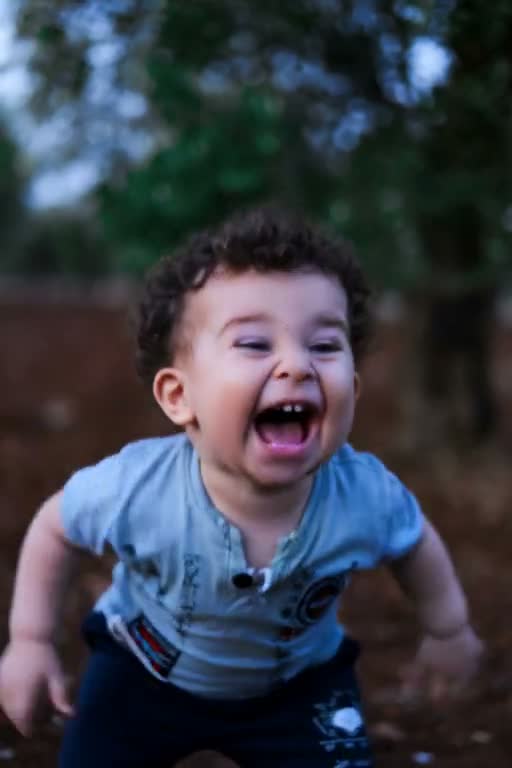
Generated portrait video example for text to video

Text to Video

Start with a written scene when you do not have a photo.

  1. Home
  2. /
  3. Animate Old Photos

Old photo to video AI

Animate Old Photos with AI

Quick answer

Animate Old Photos converts one JPG, PNG, or WebP family or historical picture up to 10MB and at least 300 pixels into a short AI video. To animate old photos, start with blinking, breathing, or a slow camera push, preview the credit cost, then compare the face, hands, clothing, and background with the original. The tool does not restore or colorize photos, and a free generation is not currently included.

Real product example

A family photo before and after motion

This four-second Animate Old Photos example uses a real old family photo available in the product demo.

Watch the children's faces, hands, and couch pattern. These details show whether the generated motion still respects the original photo.

Original old family photo before using Animate Old Photos
Input: a scanned family photograph with three visible faces.
Output: a four-second video with restrained portrait motion.

Core capabilities

What the old photo workbench controls

The Animate Old Photos workbench uses a smaller, more deliberate motion target for old portraits. It does not promise perfect identity preservation, so the controls and review step matter as much as the initial prompt.

Start with restrained portrait motion

When you animate old photos, the workbench starts with a prompt for blinking, breathing, and a gentle camera push. That gives you a conservative first attempt instead of asking an old portrait to perform a large new action.

Keep the source photo in control

The default direction asks the model to preserve identity, pose, expression, clothing, and background. These instructions reduce unnecessary changes, although every result still needs a visual review.

Choose the model and output settings

Select a connected video model, aspect ratio, duration, resolution, and sound option. The workbench recalculates the credit requirement before you generate, so the cost is visible before the request starts.

Review a real video result

Completed generations appear in the preview area with their status and download action. A careful review is essential when you animate old photos, so compare the face, hands, clothing, and background with the original before keeping the clip.

Four-step workflow

How to Animate Old Photos with AI

The reliable approach is input first, then one motion goal, a short test, and a careful comparison. Each step limits a different source of distortion before you spend credits on another version.

  1. 1

    Upload the clearest version of the photo

    To animate old photos from a print, use a JPG, PNG, or WebP image up to 10MB and at least 300 pixels. A clean scan or evenly lit phone capture gives the model more reliable facial and clothing detail than a tilted image with glare.

  2. 2

    Choose one small motion goal

    Keep the prefilled gentle portrait prompt, select a template, or write one clear change such as a blink, slight smile, subtle breathing, or slow camera push. Avoid combining talking, turning, waving, and camera movement in one first attempt.

  3. 3

    Select a short draft and check the credits

    A short draft is the practical way to animate old photos when the source contains several faces or visible damage. Choose the model, aspect ratio, duration, resolution, and sound setting that fit the intended use.

  4. 4

    Generate, compare, and download

    Sign in, generate the clip, and compare it with the uploaded photo. If identity or background details drift, reduce the requested motion and try again before downloading the version you want to keep.

Input guide

Choose the right photo and first motion

A small face or damaged print gives the model less reliable information from frame to frame. Match the first motion request to what the source can actually support when you animate old photos.

Photo typeStart withAvoid firstQuality check
One clear portraitBlink, breathing, slight head motionLarge turns or speakingEyes, mouth, hairline
Two-person portraitMinimal facial motionDifferent actions per personBoth faces and hands
Large family groupShort clip or closer cropStrong synchronized movementSmall faces and body edges
Scratched or blurred printCleanup before animationAnimating visible damageCracks, blur, missing detail

The photo-and-motion table is a first-draft guide. Change one motion, model, or output setting at a time when you animate old photos. This makes input problems easier to distinguish from generation problems.

Use cases

Ways to bring old photos to life

People animate old photos for family memories, memorials, and historical storytelling. Family memory, memorial, and local-history projects start from different source photos, but each produces a short video that should be reviewed against the original.

A family memory clip

Start with a clean portrait of a parent, grandparent, or ancestor. Add a blink and subtle breathing, then export a short clip for a family archive, reunion, or private memory project.

A memorial presentation

Use one respectful photo and restrained movement instead of a dramatic performance. Check the result with family members and keep the original still visible so viewers understand the source.

A local-history story

Creators can animate old photos for a school or community history project, provided they have the rights to use them. Pair the generated clip with dates, names, and source notes outside the animation.

Boundaries and quality control

Limits to check before you Animate Old Photos

Before you animate old photos, separate source damage from motion problems and decide what must remain unchanged.

Animation does not restore scratches, remove blur, rebuild missing faces, or colorize a black-and-white source.

Small or covered faces can drift because the source does not provide enough stable detail for every generated frame.

Large gestures, speech, and strong head turns ask the model to invent information that is not present in one still photo.

A generated clip can change identity, clothing, hands, or background objects. Compare every result with the original before sharing it.

FAQ

Animate Old Photos FAQ

How do I animate old photos with AI?

Upload a clear scan or photo, describe one restrained movement, choose a model and short duration, then generate the video. To animate old photos naturally, begin with blinking, breathing, or a small camera push and review the face against the original.

Can I bring old photos to life free?

A free generation is not currently included. The workbench shows the credit requirement for the selected model and settings before generation, and the pricing page lists the available credit options.

Does the tool restore or colorize an old photo?

No. This page turns an uploaded old photo into a video; it does not repair scratches, reconstruct missing details, or add color. Clean or restore heavy damage before animation so cracks and blur are less likely to move with the subject.

Can I animate an old family group photo?

Yes, but group photos are harder because every face is smaller and must stay consistent across frames. Use minimal motion, a short draft, and consider cropping to one or two people when the original is crowded.

What should I check before sharing the video?

Compare faces, eyes, mouths, hands, clothing edges, and the background with the source. Only upload images you have permission to use, and explain that the motion was AI-generated when context matters.

Related next steps

Read the detailed preparation guide before working with a damaged scan, or review credit options before choosing a longer model and higher resolution.

Read the old photo guideReview credits and pricing

Create a short memory clip

Return to the workbench to animate old photos with a gentle prompt, visible credit estimate, and a real video preview.

Animate an old photo

Last updated: August 11, 2026