AI photo restorer and animator
The highest-quality results usually come from a two-step mindset: restore first, animate second. In Animate Photo AI, light restoration improves stability—then subtle motion makes the photo feel alive without changing who it is.
Exemplo de vídeo
Uma rápida visualização do tipo de movimento que você pode gerar.
TL;DR
Quick answers
Restoration improves animation stability—especially around eyes and hairlines.
- Best order
- Repair scratches → reduce noise → upscale → then animate. This reduces flicker and warped edges.
- Focus areas
- Eyes, lips, and hairlines drive perceived realism. Clean these areas before adding motion.
- Don’t over-sharpen
- Over-sharpening creates halos that look worse once animated. Prefer gentle clarity improvements.
- Keep motion subtle
- After restoration, start with blinking and micro head motion. Add stronger effects only if needed.
GUIDE
Restore, then animate (the highest-quality workflow)
A practical checklist for cleaner details, fewer artifacts, and more stable motion.
Old photos fail in animation for predictable reasons: blur hides facial boundaries, noise creates flicker, and scratches introduce false edges. An AI photo restorer and animator workflow fixes those issues first so motion becomes smoother and more believable.
Treat restoration as “stabilization,” not makeover. Keep skin texture and identity consistent, then animate with minimal motion. This is especially helpful for scanned prints, black-and-white portraits, and low-resolution family photos.
Trust & responsibility
Animate Photo AI (animatephotoai) focuses on stabilizing details first, then adding subtle motion. Only upload photos you own or have permission to use, especially for irreplaceable family memories.
When to restore before you animate
- Faded paper prints with visible dust, scratches, or stains.
- Low-resolution scans that look soft or slightly blurry.
- Noisy images where grain causes shimmer in video.
- Damaged corners or torn edges that distract the model.
- Old portraits where eyes are small and need clarity for blinking.
Best practices for restoration + animation
- Scan at high resolution
- A clean scan with correct alignment reduces warping. If possible, avoid glare on glossy prints.
- Remove scratches gently
- Fix the big defects first. Over-restoring can erase texture and make the final clip look artificial.
- Avoid over-smoothing
- Keep some natural grain. “Plastic skin” tends to flicker once motion is introduced.
- Animate with minimal motion
- Blinking + micro head motion is usually enough after restoration. Large motion highlights any remaining artifacts.
- Review at real size
- Preview on the device you’ll share on. If you see shimmer, reduce motion or soften restoration settings.
Common issues and how to fix them
Restoration changes identity▾
Dial back aggressive sharpening/smoothing. The goal is clarity, not reshaping facial features.
Artifacts appear near edges▾
Crop away torn borders and strong stains. High-contrast edges can confuse the animation model.
Flicker persists after restoration▾
Reduce motion intensity and keep loops short. Some grain is fine; heavy motion turns it into shimmer.
Eyes still look unstable▾
Crop closer, increase face size in-frame, and start with blink-only. Eye detail is the main stability driver.
Color shifts feel unnatural▾
Prefer neutral restoration. If you colorize, keep tones subtle and avoid oversaturated skin colors.
Ferramentas relacionadas em Animate Photo AI
Cubra intenções vizinhas, aprenda fluxos de trabalho alternativos e construa autoridade no assunto com casos de uso conectados.
Todas as ferramentas de animação de fotos
Navegue por todos os casos de uso e escolha o melhor para sua foto.
Animate old family photos
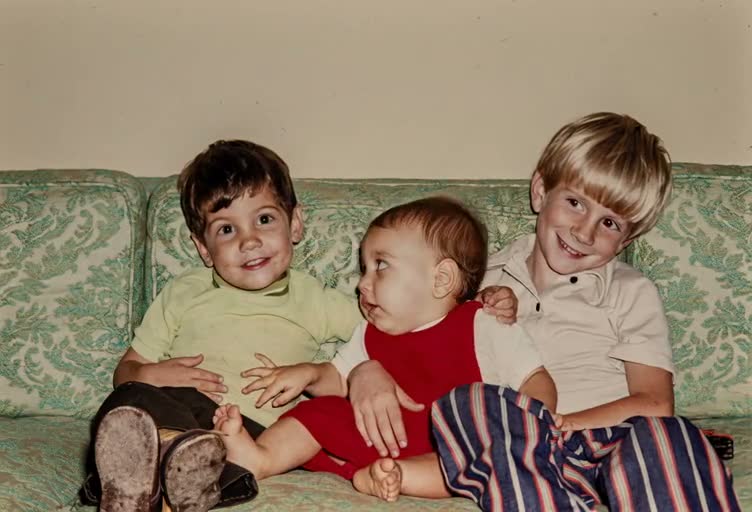
Restore and animate family portraits with subtle motion, natural blinking, and gentle smiles—great for group shots.
Animate vintage black and white photos
Keep vintage texture while adding motion—plus optional gentle colorization tips for black-and-white portraits.
Animate wedding photos from the past
Bring wedding portraits to life with subtle head motion and blinking—handles veils, reflections, and soft lighting.
HOW TO
How to restore and animate an old photo
A practical workflow for damaged, blurry, or noisy photos.
- 1Upload and crop to the subject
Crop close enough that the face is clear. Straighten the image and remove heavy borders if possible.
- 2Repair scratches and reduce noise
Fix large artifacts first. Apply light denoise—preserve important texture instead of smoothing everything.
- 3Upscale for stable motion
Upscaling helps the model track facial landmarks more consistently, especially on low-resolution scans.
- 4Animate with restrained settings
Start with blinking. Add a tiny head motion or soft smile only if it still looks natural.
BEST SETTINGS
Best settings & input tips
Common restoration problems and what to do before animating.
| Entrada de foto | Efeito recomendado | Configurações sugeridas | Notas |
|---|---|---|---|
| Scratches and creases | Repair → animate | Fix artifacts first; then blink | Artifacts can “move” after animation if not repaired. |
| Blurry face details | Upscale → subtle motion | Upscale; then blink + micro motion | Sharper landmarks improve stability. |
| Heavy noise / film grain | Light denoise → animate | Denoise lightly; keep texture | Over-denoise causes plastic skin and shimmer. |
| Faded contrast | Contrast restore → animate | Boost contrast gently; then blink | Avoid extreme contrast that clips shadows/highlights. |
EXAMPLES
Example prompts
Prompts that encourage a restore-first workflow.
Restore then blink
First restore clarity and remove scratches; then add slow blinking and minimal head motion—keep it realistic.
Old scanned print
Upscale and reduce noise on this scanned photo, preserve texture; then animate with subtle blinking only.
Damaged edges
Repair visible creases around the face; keep background static; add gentle blink and slight breathing motion.
FAQ
FAQ
Common questions about restoring and animating old photos.
FAQ
- Why does restoration help animation?
- Cleaner facial detail helps the model track landmarks consistently. It reduces flicker, jitter, and warped edges during motion.
- How much denoise is too much?
- If skin looks waxy or details disappear, it’s too much. Use light denoise and preserve texture where possible.
- What should I animate first?
- Blinking. It adds life with minimal risk. Add a small head motion only after blinking looks stable.
Why does restoration help animation?▾
Cleaner facial detail helps the model track landmarks consistently. It reduces flicker, jitter, and warped edges during motion.
How much denoise is too much?▾
If skin looks waxy or details disappear, it’s too much. Use light denoise and preserve texture where possible.
What should I animate first?▾
Blinking. It adds life with minimal risk. Add a small head motion only after blinking looks stable.
Can I animate very damaged photos?▾
Often yes, but results depend on facial clarity. Repair large artifacts first and consider cropping closer to the face.