Animate childhood memories
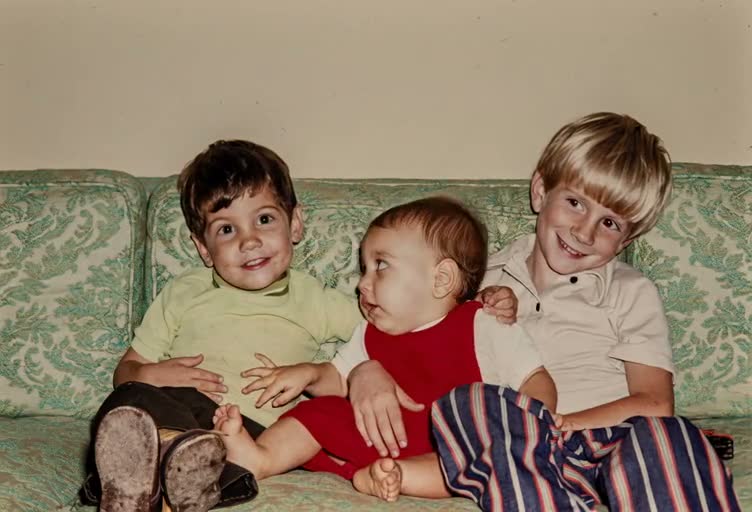
Turn a childhood photo into a short, nostalgic animation with Animate Photo AI. Use gentle motion that keeps the child’s face recognizable and avoids exaggerated expressions—especially when the photo is small or blurry.
Exemplo de vídeo
Uma rápida visualização do tipo de movimento que você pode gerar.
TL;DR
Quick answers
Childhood photos often need extra care because faces are smaller and features change with age.
- Crop closer
- If the face is small in frame, crop closer. Clear eyes and mouth help preserve identity.
- Keep expressions gentle
- A little blink and micro motion go a long way. Avoid big smiles that reshape the face.
- Watch old camera artifacts
- Low-resolution prints can shimmer. Restore clarity first to reduce flicker and jitter.
- Protect the original vibe
- Keep the style consistent with the photo. Minimal motion often feels more nostalgic and real.
GUIDE
Animate childhood memories (keep identity stable)
Childhood photos often have smaller faces—small choices make a big difference.
To animate childhood memories well, you want the child to look like themselves in every frame. Because old snapshots often have low resolution, it’s safer to animate with blinking and micro motion than with big smiles or speech.
In Animate Photo AI, crop closer so the face has enough detail, and keep duration short. If the image is faded or noisy, restore first to reduce flicker and reduce the chance of facial “morphing.”
Trust & responsibility
Animate Photo AI (animatephotoai) helps you preserve memories with subtle motion. Only upload photos you own or have permission to use, and be careful when sharing childhood images publicly.
Great ways to use childhood photo animations
- A birthday video showing a “then vs now” moment.
- A parents’ gift: one short clip from a favorite childhood portrait.
- A family reunion slideshow with gentle looping clips.
- Digitizing albums: animate one photo per year as a timeline.
- A memorial montage that stays calm and respectful.
Best practices for small faces and old cameras
- Crop closer to the face
- If the face is tiny, blinking can distort eyelids. A tighter crop gives the model clearer facial boundaries.
- Use minimal motion
- Blinking + a tiny head tilt is enough. Strong expressions can change facial shape and reduce likeness.
- Restore first if needed
- Light denoise and scratch removal reduces shimmer. Avoid over-smoothing, which can make skin look synthetic.
- Keep clips short
- Short loops often feel more natural and hide minor artifacts. Longer clips make small issues more noticeable.
- Get consent for sharing
- If you plan to post publicly, make sure you have permission—especially when photos include minors or family members.
Common issues and how to fix them
Face “morphs” across frames▾
Reduce motion strength, restore the photo first, and keep prompts simple. Stability beats complex actions.
Eyes look distorted▾
Crop tighter and slow the blink timing. If the eyes are very small, blink-only may still be too strong.
Background shimmers▾
Keep the prompt focused on subtle facial motion and avoid camera movement. Old film grain can shimmer under motion.
Smile becomes exaggerated▾
Use “gentle” and “modest,” keep teeth hidden, and reduce expression intensity for a more nostalgic look.
Low-resolution flicker▾
Upscale/denoise first, then animate at conservative settings. Grain and dust are common flicker sources.
Ferramentas relacionadas em Animate Photo AI
Cubra intenções vizinhas, aprenda fluxos de trabalho alternativos e construa autoridade no assunto com casos de uso conectados.
Todas as ferramentas de animação de fotos
Navegue por todos os casos de uso e escolha o melhor para sua foto.
Animate old family photos
Restore and animate family portraits with subtle motion, natural blinking, and gentle smiles—great for group shots.
AI photo restorer and animator
Repair, upscale, and reduce noise first—then animate for smoother, more stable results on old photos.
Add realistic eye blinking to portraits
Add lifelike eye blinking with natural timing and eyelid motion—perfect for portraits and headshots.
HOW TO
How to animate childhood memories
A workflow that keeps the face recognizable and the motion gentle.
- 1Upload and crop to the face
If the child is far from the camera, crop closer. The model performs better when facial features are clear.
- 2Restore blur and reduce noise
Fix grain and blur lightly. Avoid over-smoothing skin—keep natural texture when possible.
- 3Add subtle motion
Start with blinking. Add tiny head motion only if it stays natural and doesn’t reshape the face.
- 4Preview for identity consistency
If the face changes too much, reduce expression and motion. Subtle is safer for childhood photos.
BEST SETTINGS
Best settings & input tips
Common childhood-photo situations and what works best.
| Entrada de foto | Efeito recomendado | Configurações sugeridas | Notas |
|---|---|---|---|
| Small face in a group photo | Crop → blink | Crop closer; blink only | Smaller faces are easier to distort—keep it simple. |
| Old school photo (grainy) | Light restore → blink | Denoise lightly; then blink | Restoration reduces shimmer in motion. |
| Outdoor childhood snapshot | Blink + micro head motion | Very low head motion | Keep background still to preserve realism. |
| Smiling childhood photo | Blink only | No extra smile; blink slow | Extra expression often changes facial identity. |
EXAMPLES
Example prompts
Prompts that preserve identity and keep motion nostalgic.
Nostalgic, subtle
Add gentle blinking and tiny breathing motion; keep face and hairstyle unchanged; preserve the original photo’s look.
School photo style
Keep it realistic: slow blinking only, no big smile changes, background completely still.
Family memory clip
Create a short memory-style animation with subtle blink and minimal movement; keep the child’s face recognizable.
FAQ
FAQ
Common questions about animating childhood photos.
FAQ
- Why do childhood faces change more easily in animation?
- Faces are smaller and features are less defined in many old photos. Cropping closer and keeping motion subtle helps preserve identity.
- What’s the safest motion to start with?
- Blinking. It adds life with minimal risk. Add head motion only after blinking looks stable.
- Should I enhance the photo first?
- Usually yes. Light restoration improves stability and reduces flicker on low-resolution prints.
Why do childhood faces change more easily in animation?▾
Faces are smaller and features are less defined in many old photos. Cropping closer and keeping motion subtle helps preserve identity.
What’s the safest motion to start with?▾
Blinking. It adds life with minimal risk. Add head motion only after blinking looks stable.
Should I enhance the photo first?▾
Usually yes. Light restoration improves stability and reduces flicker on low-resolution prints.
Can I animate a group childhood photo?▾
Yes, but focus on one face or keep motion extremely subtle across the whole image for the most natural result.