Animate old family photos
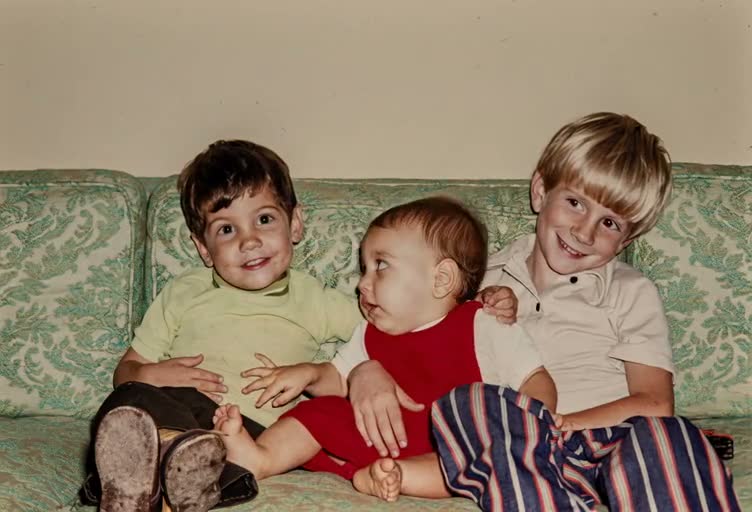
Turn a single family photo into a short, natural-looking video with Animate Photo AI. Great for gifts, reunion slideshows, and preserving vintage family portraits. It works best on scanned prints and group photos—keep motion subtle to preserve identity.
Sample video
A quick preview of the kind of motion you can generate.
TL;DR
Quick answers
The fastest way to get a realistic result from an old family photo.
- Best photo input
- Use a sharp scan or well-lit shot where eyes are visible; crop to faces if it’s a group photo.
- Most natural motion
- Start with blinking + micro head motion; avoid large mouth movement for multi-person photos.
- Fix before animate
- If the photo is faded or noisy, restore clarity first—then animate for cleaner results.
- Privacy & consent
- Only animate photos you own or have permission to use; avoid sharing sensitive family images publicly.
GUIDE
Why animate old family photos
A deeper guide to keep results realistic, respectful, and emotionally true.
When you animate old family photos, aim for subtle blinking and micro motion—like a memory gently breathing, not a dramatic transformation.
Straighten the scan, crop closer to faces, and fix noise or scratches before you turn a photo into video. This keeps facial detail stable and reduces flicker.
Trust & responsibility
Animate Photo AI (animatephotoai) is designed for personal memories. Only upload photos you own or have permission to use, and keep results respectful—especially for deceased relatives.
Great for these scenarios
- A birthday or anniversary gift built from a single family portrait.
- A respectful memorial slideshow with minimal, calm motion.
- Family reunion playback on a TV (short loops work well).
- Digitizing albums: animate one “hero” photo per decade.
- Group photos where you want only the main faces to blink naturally.
Best practices (realistic first)
- Scan, don’t screenshot
- Use a high-resolution scan or a well-lit photo; reduce glare so eyelids and pupils stay clean during blinking.
- Crop for faces
- For group portraits, crop slightly tighter so each face has enough pixels; keep everyone in-frame consistent and centered.
- Keep motion low
- Start with blink only, then add micro head motion. Strong mouth movement often looks uncanny on old family photos.
- Restore before animate
- Denoise, deblur, and remove scratches first to reduce flicker and warping artifacts in the final video.
- Iterate in small steps
- Change one control at a time—blink timing, smile strength, or duration—and preview on mobile and desktop before exporting.
Common issues and how to fix them
Multiple faces drift▾
Lower motion strength and keep the crop stable. If needed, generate separate clips for the main faces instead of animating everyone.
Glasses glare breaks eyelids▾
Use blink-only with slower timing and minimal extra motion. Glare zones can distort when eye shapes change.
Background warps or shimmers▾
Keep prompts face-focused and avoid head turns. Subtle motion helps clothing and background stay still.
Flicker on low-quality scans▾
Restore/upscale first, then animate with conservative settings. Grain and scratches often cause temporal shimmer.
Smile feels “too modern”▾
Use words like “gentle” and “modest,” avoid “big grin,” and keep teeth hidden unless the original photo shows them.
Related tools in Animate Photo AI
Cover neighboring intents, learn alternative workflows, and build topical authority with connected use cases.
All photo animation tools
Browse all use cases and pick the best one for your photo.
AI photo restorer and animator
Repair, upscale, and reduce noise first—then animate for smoother, more stable results on old photos.
Animate vintage black and white photos
Keep vintage texture while adding motion—plus optional gentle colorization tips for black-and-white portraits.
Animate childhood memories
Animate childhood photos with gentle motion that preserves identity—tips for small faces and vintage cameras.
HOW TO
How to animate old family photos
A simple workflow that works well for both single-person portraits and family group shots.
- 1Upload a clear family photo
Scan at high resolution when possible; straighten the frame and reduce glare on glossy prints.
- 2Choose a subtle animation style
Prefer blink, gentle smile, or slight head motion. Keep expression intensity low for a natural look.
- 3Tune faces for group shots
If multiple people are in frame, prioritize the main faces and keep motion strength consistent across subjects.
- 4Generate, preview, and iterate
If it feels uncanny, reduce expression strength and blink rate. Small changes usually look best.
BEST SETTINGS
Best settings & input tips
Use this table as a starting point, then adjust based on the age and quality of your photo.
| Photo input | Recommended effect | Suggested settings | Notes |
|---|---|---|---|
| Faded group portrait (3–6 people) | Subtle blink + micro head motion | Low expression; blink every 3–5s | Group photos look best with minimal motion. |
| Single-person family portrait | Gentle smile + blink | Smile low; head motion very low | Avoid showing teeth unless the original photo has it. |
| Photo with glasses glare | Blink only | Slow blink; disable extra motion | Glare can distort eyelids—keep it simple. |
| Low-resolution scanned print | Restore + blink | Upscale/denoise first; then blink | Restoration reduces flicker artifacts. |
EXAMPLES
Example prompts
Short prompts that encourage natural motion (and avoid over-animation).
Warm, realistic
Make this family portrait gently blink and breathe—very subtle motion, no mouth movement, keep the original style.
Anniversary tribute
Create a short, respectful animation with soft blinking and a slight smile; keep everyone’s face natural.
Group photo stabilization
Animate only the main two faces with minimal motion; keep background and clothing completely still.
FAQ
FAQ
Common questions about animating old family photos.
FAQ
- Will it animate everyone in a group photo?
- It can, but group photos look best with minimal motion. If possible, focus on the main faces and keep expression strength low.
- How do I avoid uncanny results?
- Start with blinking only, then add a tiny head motion. Avoid strong smiles or talking effects for old family photos.
- Should I restore the photo first?
- Yes—clarity and noise reduction often improve animation stability. Restore → animate is usually the best workflow.
Will it animate everyone in a group photo?▾
It can, but group photos look best with minimal motion. If possible, focus on the main faces and keep expression strength low.
How do I avoid uncanny results?▾
Start with blinking only, then add a tiny head motion. Avoid strong smiles or talking effects for old family photos.
Should I restore the photo first?▾
Yes—clarity and noise reduction often improve animation stability. Restore → animate is usually the best workflow.
Is it safe to upload family photos?▾
Only use images you own or have permission to use. If the photo is sensitive, avoid public sharing and follow your privacy preferences.