Precise object edits
Add, remove, or replace a defined object while asking the model to preserve the surrounding composition.
GPT Image 2.5 Editor
模型
参考图片
0/16Common edit directions
点击填入
画面比例
分辨率
background
0 可用 credits
编辑结果
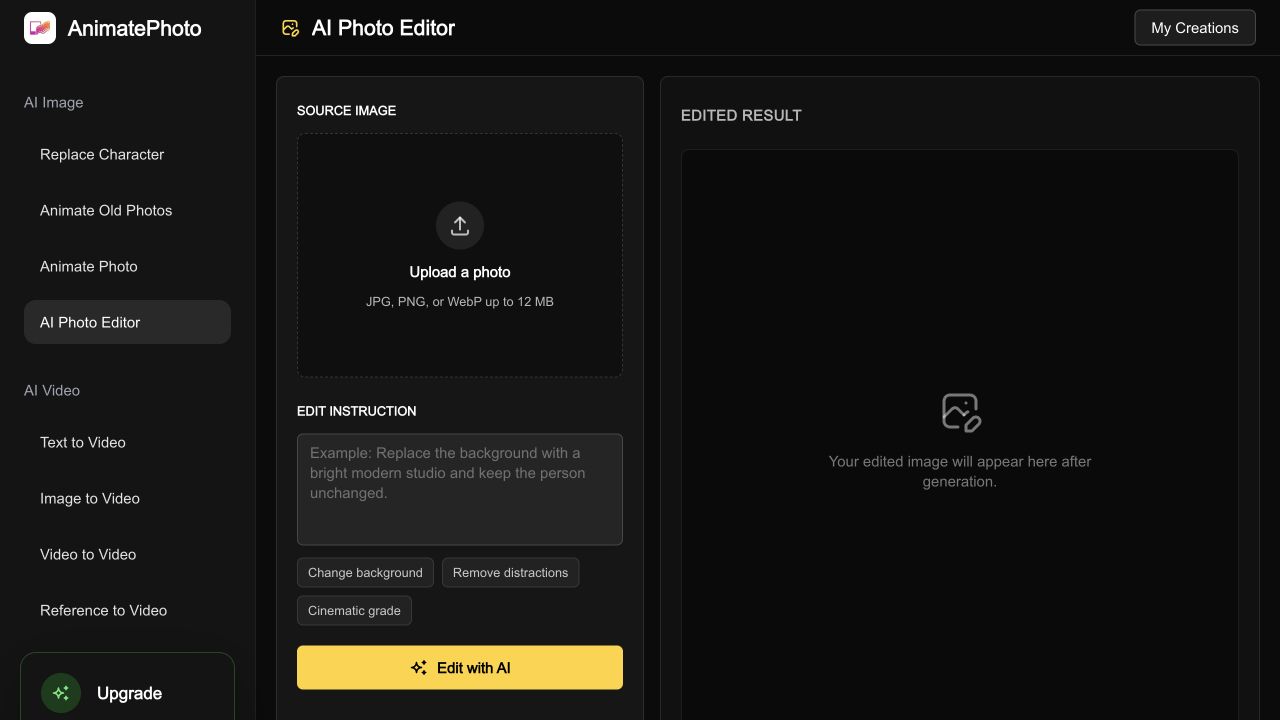
上传原图,并描述一个明确的修改。
生成完成后,编辑后的图片会显示在这里。
上传原图,并描述一个明确的修改。
Prompt-based image editing
The GPT Image 2.5 editor lets you upload an image, describe a precise change, and compare a generated result before you download or animate it. Choose GPT Image 2.5 Flare for everyday variations or Sunburst for more explicit creative direction.
Editor capabilities
Add, remove, or replace a defined object while asking the model to preserve the surrounding composition.
Move a portrait or product into a cleaner setting with explicit lighting, perspective, and subject-preservation instructions.
Add reference images for identity, style, or visual direction when one source image is not enough.
Compare 1K, 2K, and 4K output options, then inspect faces, hands, small text, and edges before export.
Four-step workflow
Use a clear JPG, PNG, or WebP image up to 12 MB.
Say what should change and what must remain unchanged.
Use Flare for everyday variations or Sunburst for more explicit creative direction.
Check faces, hands, text, edges, and small details before downloading or animating.
Model and output choices
| Model | Best for | Input | Output | Credits |
|---|---|---|---|---|
| GPT Image 2.5 Flare | Everyday edits and quick creative variations. | 1 source + up to 15 reference images (16 URLs total). | 1K, 2K, or 4K image output. | 1K: 30; 2K: 45; 4K: 70 credits |
| GPT Image 2.5 Sunburst | Edits that need more explicit creative direction. | 1 source + up to 15 reference images (16 URLs total). | 1K, 2K, or 4K image output. | 1K: 30; 2K: 45; 4K: 70 credits |
Provider: Kie image-to-image endpoints. Animate Photo AI is an independent interface, not the official OpenAI product. View the Kie model reference and pricing page. Last checked September 11, 2026.
Typical use cases
Upload a product image, remove clutter, and create a cleaner e-commerce scene without rebuilding the entire composition.
Use a portrait plus references to adjust the setting, styling, or lighting while explicitly protecting the face, pose, and clothing.
Create several controlled background, color, or layout variations, then select the strongest frame for social, ads, or motion.
Quality checks
GPT Image 2.5 editing follows instructions but does not guarantee pixel-level preservation. Use one major change per pass and keep the original source file.
Compare the result with the source before publishing.
Inspect fingers, jewelry, and narrow object boundaries.
Check brand marks and text for altered characters.
Use references for guidance; exact copying is not guaranteed.
Questions
GPT Image 2.5 Editor is an independent Animate Photo AI image-to-image workflow. Upload one source, describe one focused change, optionally add references, compare the result, and download the generated file.
Flare is positioned for everyday edits and quick variations. Sunburst is positioned for edits that need more explicit creative direction. These are product guidance labels, not a published latency or quality benchmark.
Yes. The workbench accepts a source image and optional reference images for identity, style, or scene guidance. The Kie image-to-image endpoints support up to 16 input image URLs in one request.
Each GPT Image 2.5 Flare or Sunburst edit costs 30 credits at 1K, 45 credits at 2K, or 70 credits at 4K on this workbench. Review the visible quote before generation because account plans determine credit value.
No. This is an independent Animate Photo AI workflow that connects to GPT Image 2.5 image-to-image models through Kie. OpenAI and GPT Image are referenced only to identify the model family.
Upload a source image, describe one clear change, and compare Flare with Sunburst in the workbench.
Edit an imageLast updated September 11, 2026