
Three layout directions
Place images in one horizontal row, one vertical column, or an automatically balanced grid. The image stitcher supports 2-9 cells and recalculates the canvas when the source order changes.
 AnimatePhoto
Image Stitch
Source images
2-9 JPG, PNG, or WebP files, up to 20MB each
Preview
Add at least two images
No preview yet
Your stitched result appears here after two images are ready.
Waiting for images
Image Stitcher - quick answer
An image stitcher combines two to nine JPG, PNG, or WebP files in your browser into one PNG or JPEG file. Choose a horizontal row, vertical column, or grid. The original files are not sent to an upload API.
More image tools
Continue with an adjacent image workflow
Generate a new composition, edit a source, or animate the finished still after you arrange it.
Browser-based image layout tool
The image stitcher combines 2-9 photos into one horizontal, vertical, or grid image. Arrange the source order, choose how each photo fits, adjust the gap and background, then download a PNG or JPEG without uploading the originals.
Last updated:
An image stitcher is a browser-based layout tool that arranges 2-9 JPG, PNG, or WebP images on one canvas. It creates horizontal rows, vertical strips, or grids while keeping every source in a separate cell and processing the files locally.
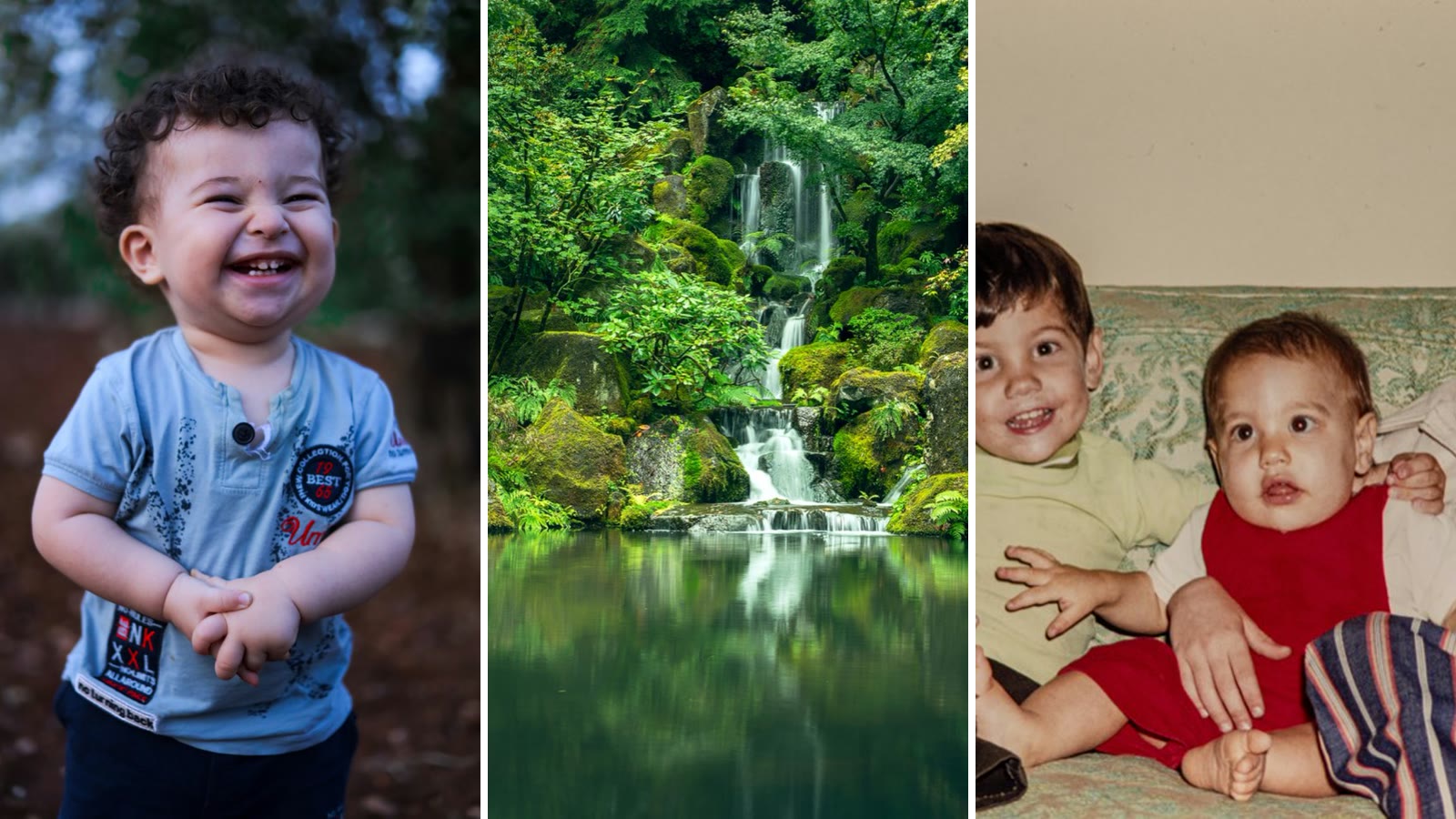
Output proof
The image stitcher does not synthesize a new scene. It creates one canvas, calculates a cell for each source, and draws the images in the selected order. Keeping each source in a separate cell makes the stitched output suitable for comparisons, contact sheets, story panels, and long visual references.
Cover fills every cell and may crop an outer edge. Contain preserves the complete source and adds background around images whose shape differs from the selected cell ratio.
Browser QA record
Tests run on August 28, 2026 produced a 2,416 x 2,416 pixel grid PNG and a 1,200 x 3,632 pixel vertical PNG. The checks verified live preview rendering, export dimensions, and a downloaded PNG that opened successfully.
Core capabilities
The image stitcher focuses on repeatable layout controls rather than generative editing, so the exported arrangement stays easy to predict.
Four-step workflow
The live preview updates after every layout change, so you can check the complete image stitcher result before creating the download.
Choose JPG, PNG, or WebP files up to 20MB each. The image stitcher reads them in your browser, and the numbered source tiles show the order used in the final canvas.
Use a horizontal row for comparisons, a vertical column for long images, or a grid for a compact gallery. Move any source earlier or later before exporting.
Select 1:1, 4:5, or 16:9 cells. Cover fills each cell by cropping edges, while contain keeps the full image and uses the selected background around it.
Check the live preview and export the completed canvas as PNG or JPEG. The download is created locally without sending source files to an upload API.
Layout guide
Use the image stitcher layout guide to match the canvas to the way the finished image will be read.
| Layout | Best input | Expected output | Recommended fit |
|---|---|---|---|
| Horizontal | Two to five comparisons or story beats | Wide side-by-side image | Cover for equal panels |
| Vertical | Screenshots, steps, or sequential references | Long image read from top to bottom | Contain for full screenshots |
| Grid | Four to nine photos with equal importance | Compact gallery or contact sheet | Cover for consistent cells |
Technical specifications
These are the current input, layout, processing, and export limits enforced by the browser workbench.
| Parameter | Current support |
|---|---|
| Input formats | JPG, PNG, and WebP |
| Image count | 2-9 images |
| File size | Up to 20MB per image |
| Layouts | Horizontal, vertical, and grid |
| Cell ratios | 1:1, 4:5, and 16:9 |
| Gap | 0-64 pixels |
| Background | Solid color; transparent output is not supported |
| Downloads | PNG or JPEG |
| Preview size | Up to 1,600 pixels on the longest edge |
| Maximum output | 8,192 pixels on the longest edge |
| JPEG quality | 92% quality setting |
| Unsupported formats | GIF, HEIC, and SVG |
| Processing | Local browser tab; source files are not sent to an upload API |
| Browser requirement | JavaScript and HTML canvas support |
Practical uses
Use the same image stitcher controls for comparisons, long references, and compact visual collections.
Start with two edits, product versions, or progress photos. Put them side by side in equal cells and add a small gap so viewers can compare the result without opening separate files.
Add screenshots in reading order, choose Vertical and Contain, then set the gap to zero or a narrow divider. A vertical Contain layout produces one long image for review, annotation, or documentation.
Select four to nine references, choose Grid, and use a consistent ratio. The image stitcher produces one compact overview for a creative brief, presentation, or social post draft.
Boundaries
The image stitcher is a layout tool. It does not align overlapping panorama frames, blend seams, remove backgrounds, add labels, or generate missing content between sources.
Check Cover crops at faces, text, logos, and the outer edge of products before downloading.
Use Contain when the complete source must remain visible, especially for screenshots and diagrams.
Large nine-image rows or columns are scaled to keep the longest export edge at or below 8,192 pixels.
Use PNG for interface captures, diagrams, and later editing; use JPEG when smaller photo files matter more.
All selected images stay in the browser tab during this workflow, but downloaded files remain your responsibility to store or share safely.
Questions and answers
Direct answers about local processing, image quality, side-by-side layouts, and the difference between stitching and generative combining.
An image stitcher combines multiple image files into one larger canvas. This tool places 2-9 images in a horizontal row, vertical column, or grid. It does not use AI to invent or replace pixels.
Yes. The image stitcher reads, arranges, previews, and exports images in the current browser tab. Your selected files are not sent to the site server by this workflow.
Add two pictures, select Horizontal, choose a cell ratio, and set image fit to Cover or Contain. Adjust the gap, verify the preview, then download the two pictures as one PNG or JPEG.
The export uses a high-resolution canvas up to 8,192 pixels on its longest edge. If a calculated layout would exceed that limit, the image stitcher scales the complete canvas down. JPEG uses lossy compression, so choose PNG when text and interface edges must stay crisp.
No. Panorama software aligns overlapping photographs. An AI image combiner generates a new composition from several references. This image stitcher keeps sources in separate cells and joins those cells on one canvas. Use the AI Image Combiner when you need a newly generated composition.
After export
After the image stitcher exports one canvas, use the result as a source for editing or animation.
Open the AI Photo Editor when the final canvas needs a prompted visual edit.
Upload the exported still to the image-to-video workflow and describe the motion.
Check the policy before moving from local stitching into any server-processed workflow.
Ready to arrange
Add two or more files to the image stitcher, choose a predictable layout, inspect the preview, and download one finished canvas.
Open the image stitcher