AnimatePhoto
1

Add the family and reference photos

Use a base group photo plus a loved-one reference

0 uploadedPrivate processing
2

Describe the placement

3

Describe the final composition

349/1000
4

Select model and canvas

Aspect ratio
5

Generate

Preview

A general multi-image composition example is shown until you generate

Example

Inputs

Input 1
Input 2

Composition example

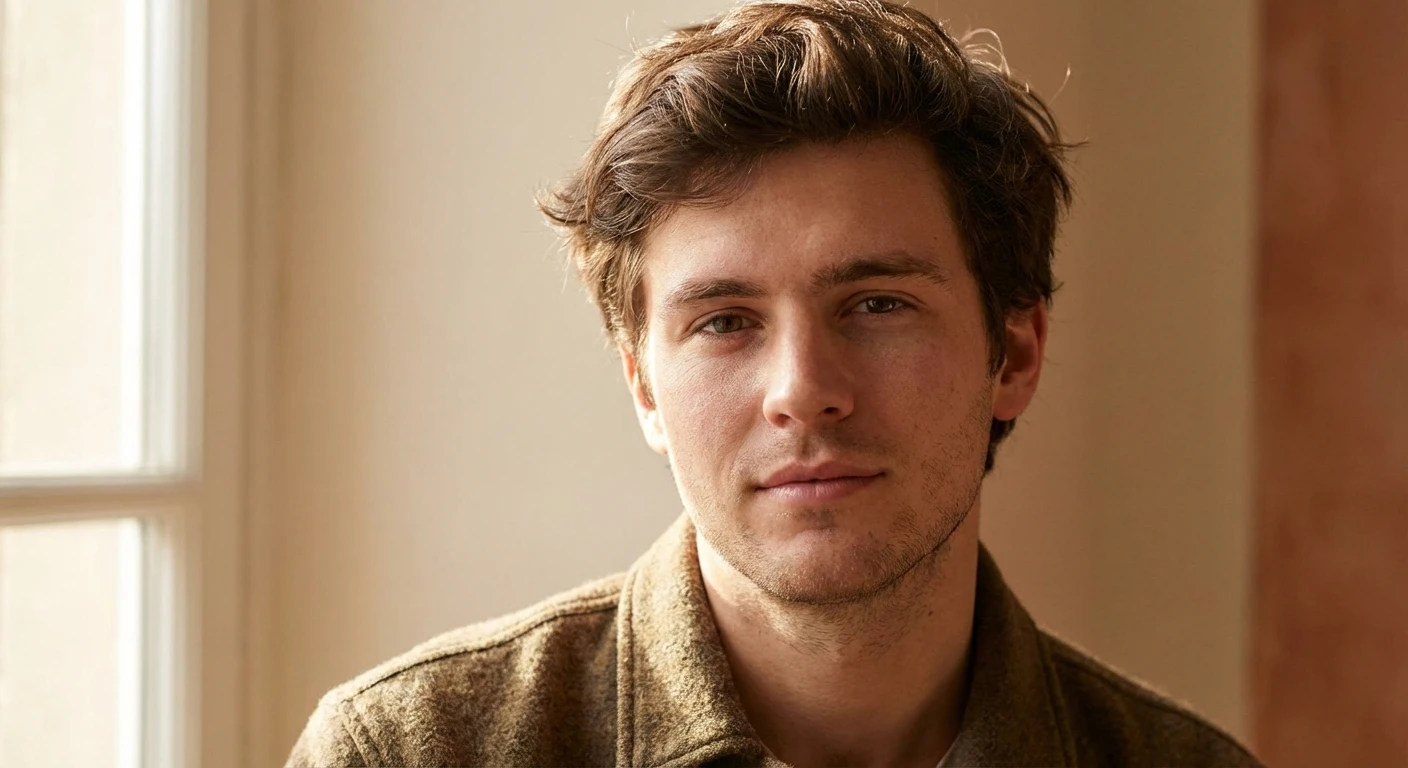
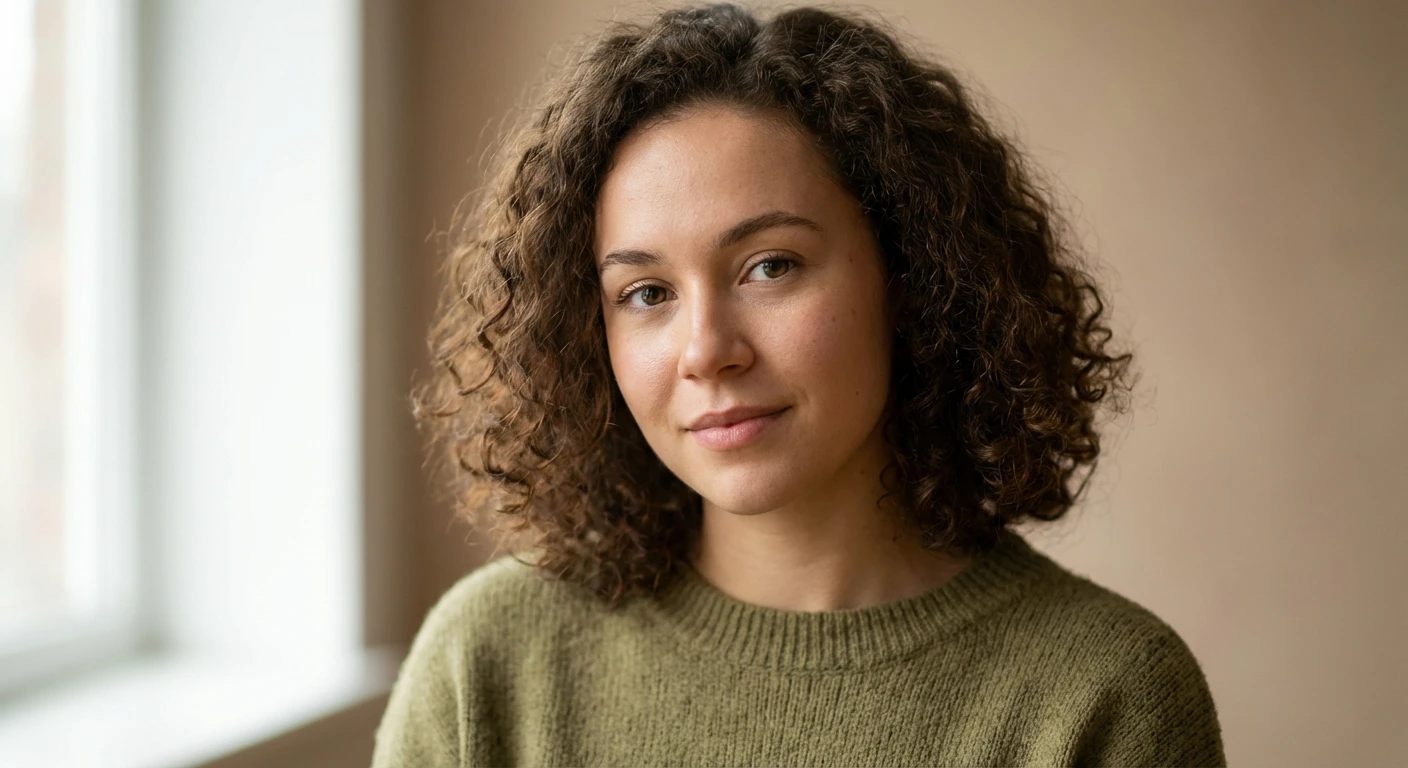
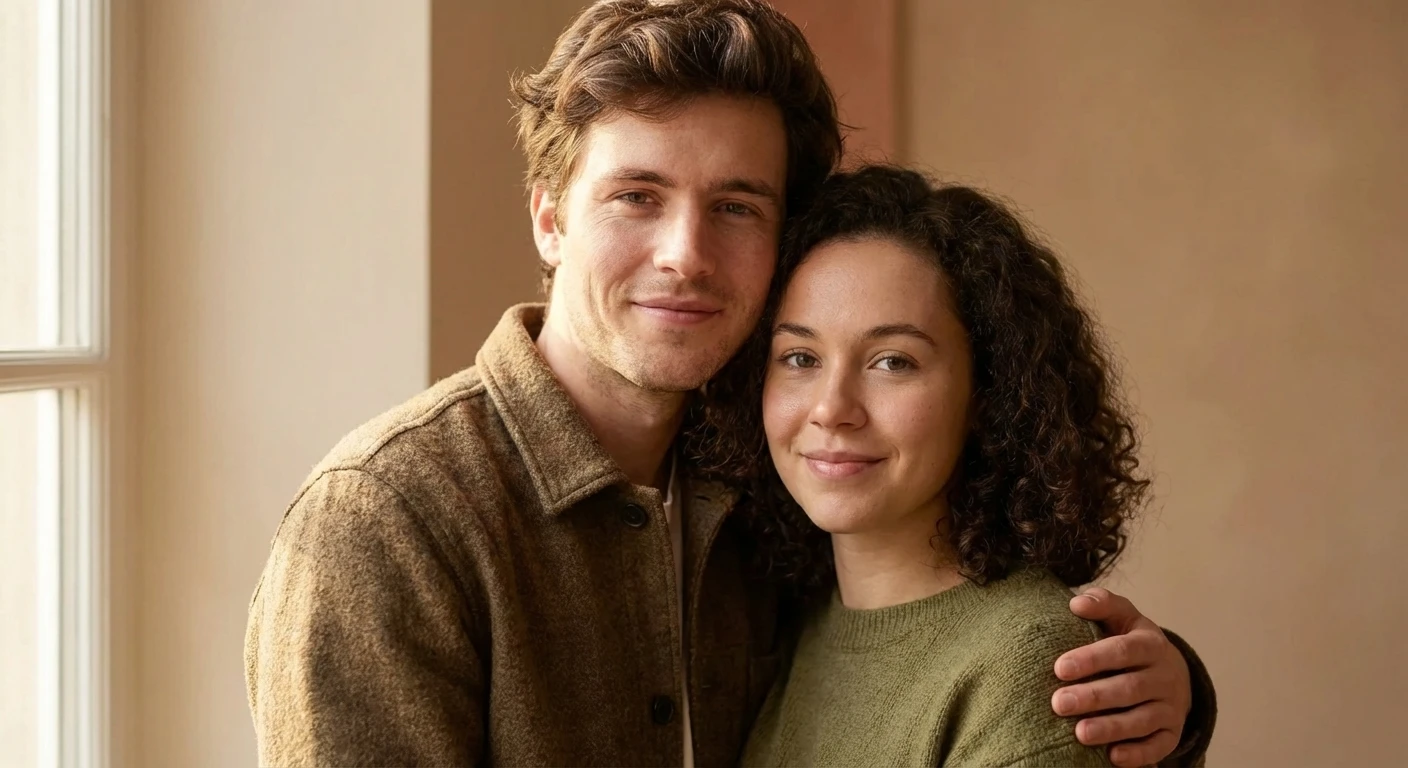
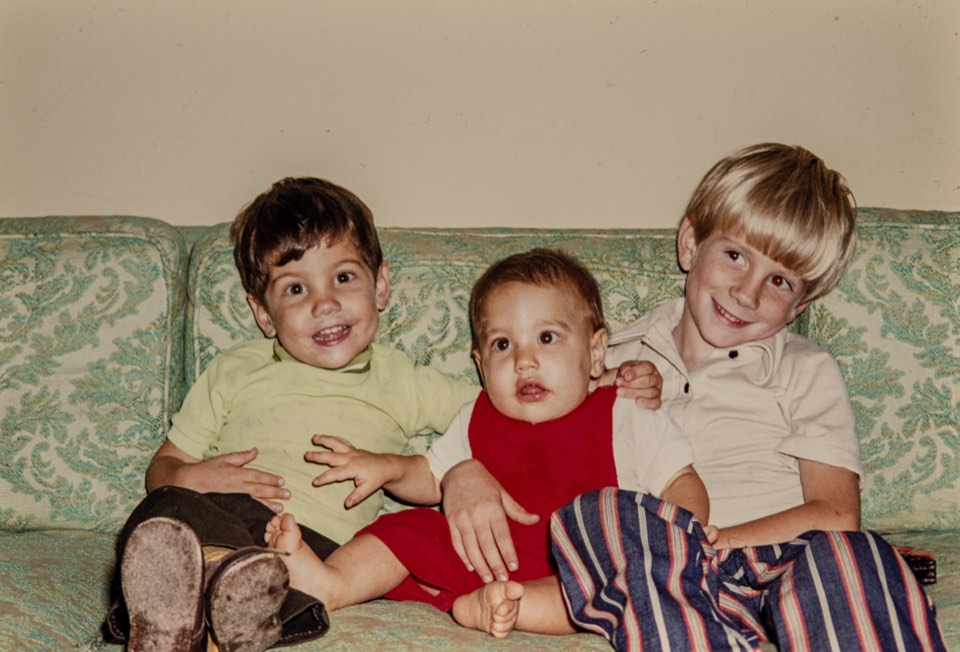
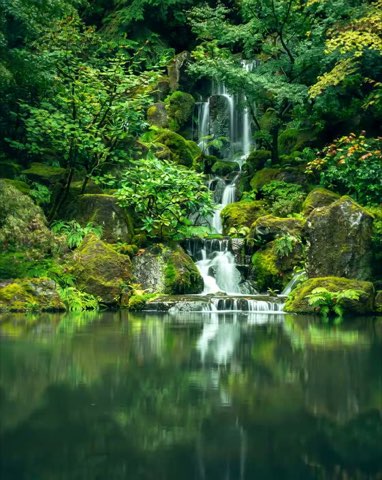
General example of two source photos combined into one scene; not a memorial portrait

Example result

Generate to replace this preview with your own image.

2 source photos to 1 scene

Selected model

Meta Muse Image Edit

Estimated time

10-60 sec

Generation cost

25 credits

Continue a photo workflow

After the add deceased loved one to photo result is ready, use these adjacent tools for a different composition, restoration, or motion workflow.

Respectful family photo composition

Add Deceased Loved One to Photo

Create a new family portrait by combining a group photo with a clear reference photo of someone who has passed away. Describe the placement, lighting, and mood, then review the generated image carefully before sharing or printing it.

Last updated:

Quick answer: add deceased loved one to photo

add deceased loved one to photo means placing a person from a reference image into a family or group photo with a generated composition. It is designed for memorial portraits where a natural, non-supernatural result is preferred.

For an add deceased loved one to photo request, upload two clear images, assign the family photo as the base and the loved-one photo as the reference, then use the prompt to describe position, scale, lighting, and background. The current workflow requires sign-in and starts at 25 credits.

Actual product surface

See the add deceased loved one to photo controls before you upload a personal photo

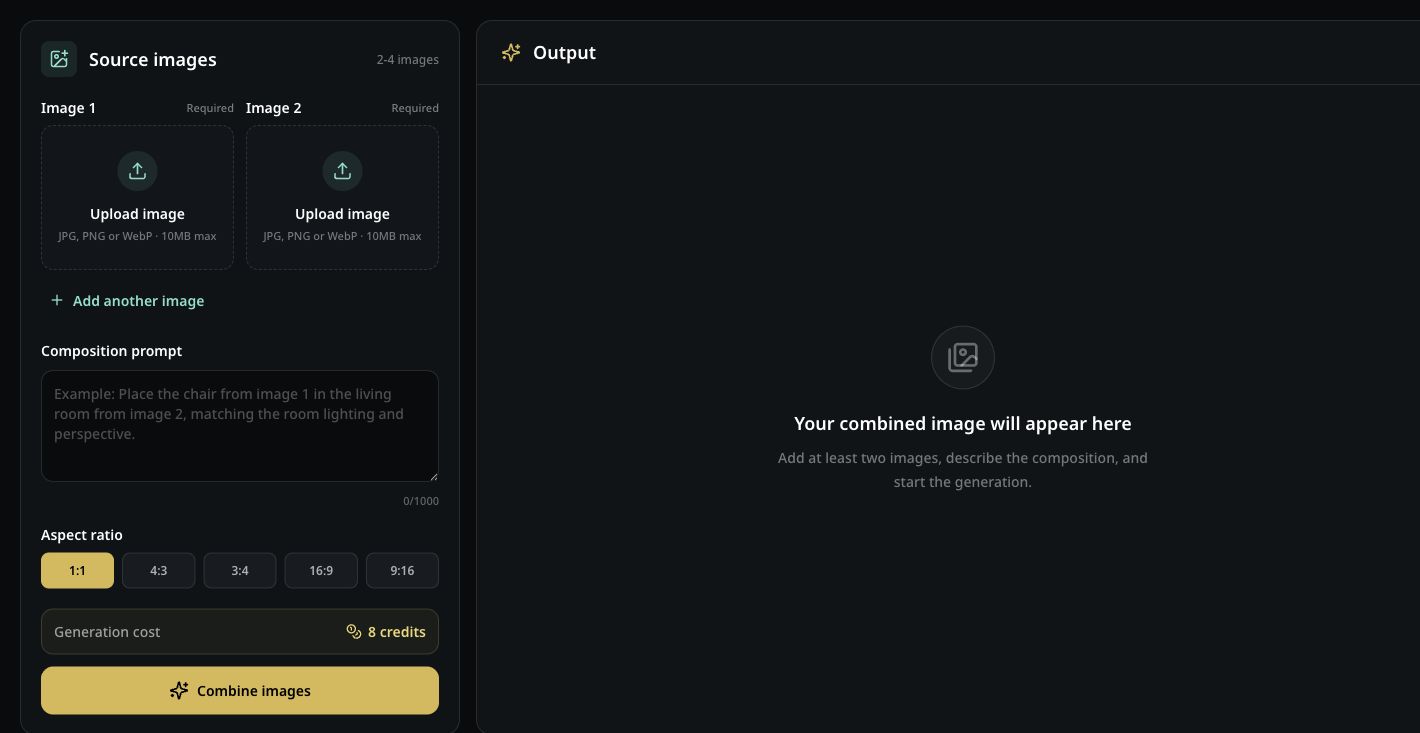
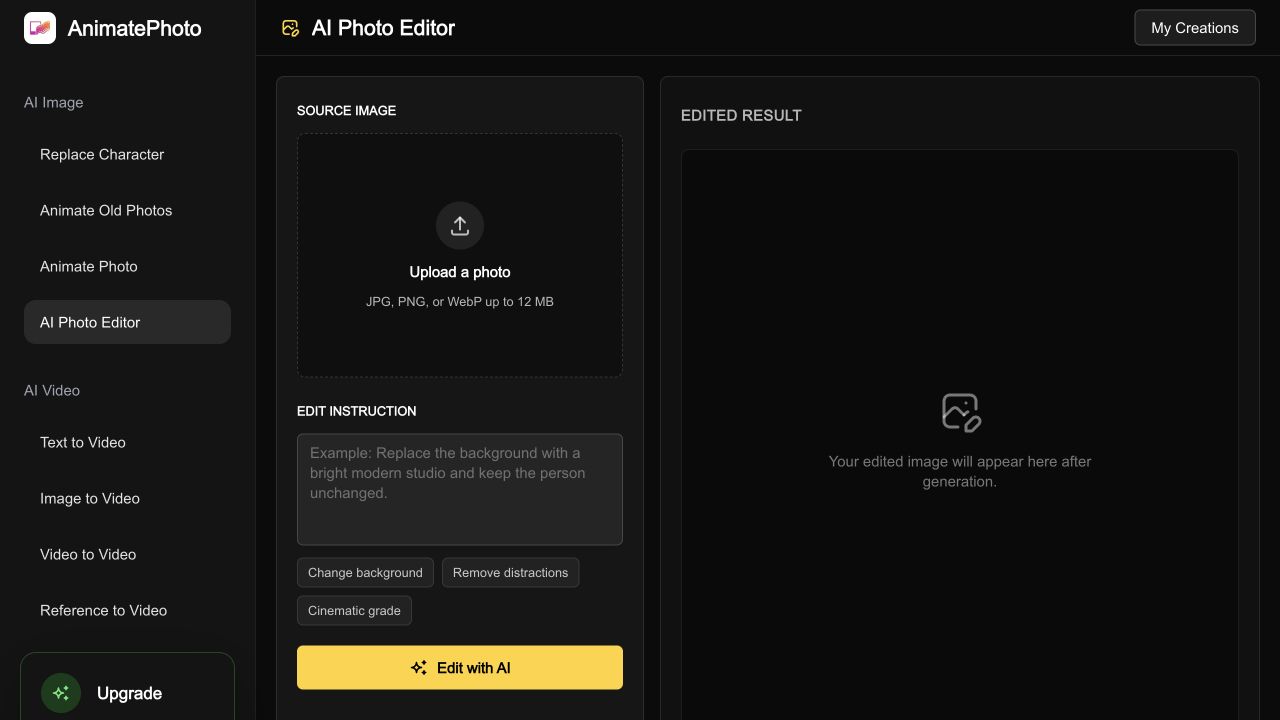
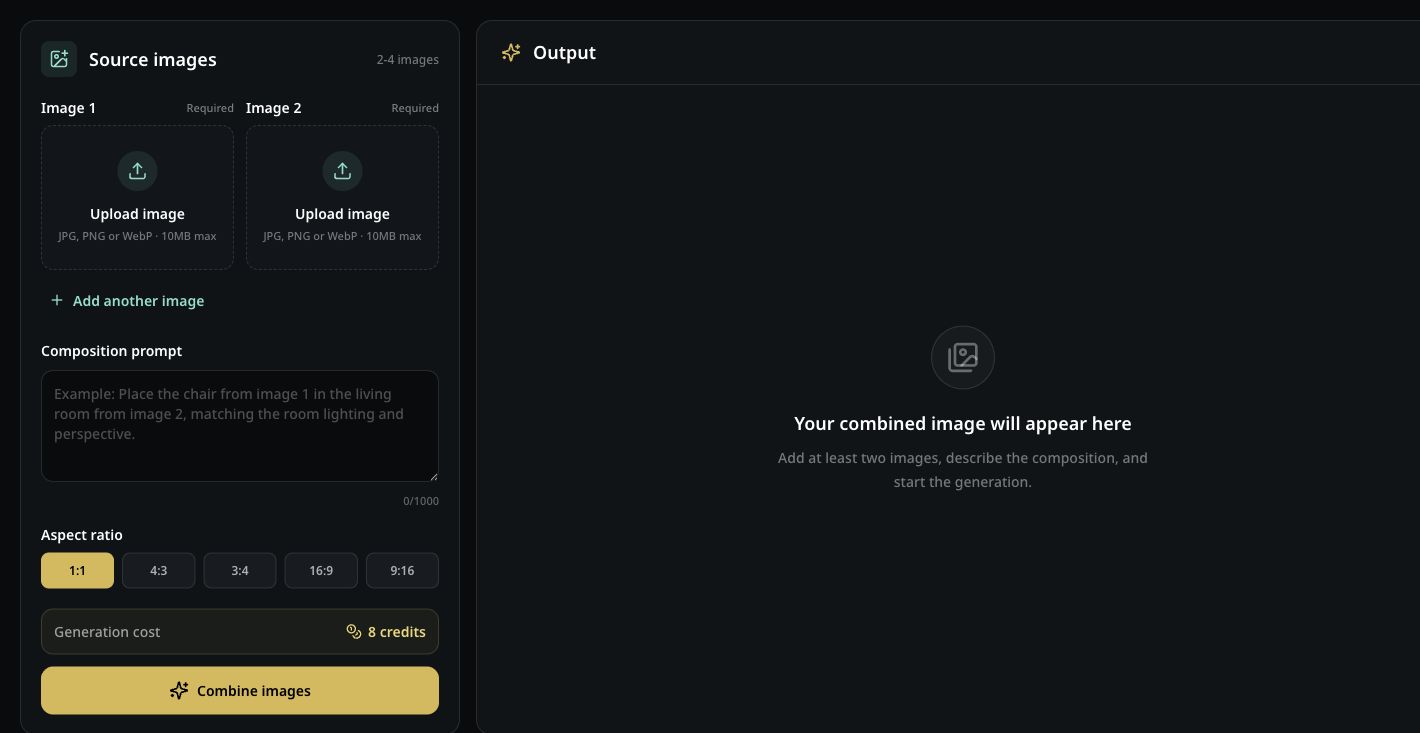
The add deceased loved one to photo workspace is the real image-combining flow: two to four uploads, a placement prompt, five canvas ratios, model selection, credit status, and a stored output download. The sample shown is a general composition example, not a generated memorial portrait.

Your own result appears only after a signed-in request completes successfully. Check the face, hands, clothing, and shadows at full size before treating the add deceased loved one to photo image as finished.

Add deceased loved one to photo workspace with family and reference upload controls
Product-interface evidence for an add deceased loved one to photo request. The static example does not depict a deceased person.

Core capabilities

Create a respectful AI memorial portrait

Each control answers one composition question. Source images define the people and scene. The prompt defines placement. The canvas defines the final frame.

Use two distinct source roles

Start with a family or group photo, then add a loved-one reference photo. The Add Deceased Loved One to Photo workflow also accepts optional third and fourth images for another subject, outfit, or background cue when each has a defined role.

Describe natural placement

The loved-one prompt in an Add Deceased Loved One to Photo request can specify beside, seated with, or standing behind the family. It can also request matched scale, camera angle, shadows, and a quiet, realistic mood.

Frame the final keepsake

Choose square, landscape, portrait, widescreen, or vertical output for a frame, album, tribute page, or social post before the model creates the composition.

Review before sharing

The result is stored for preview and download after generation. Compare the Add Deceased Loved One to Photo result with both source photos and look for face, hand, text, clothing, and edge changes before publishing.

Four-step workflow

How to add a deceased loved one to a photo

The Add Deceased Loved One to Photo workflow gives the model fewer decisions when the prompt is focused and the source photos are compatible. Work through these steps, then change one instruction at a time if the first result needs refinement.

  1. 1

    Choose the family and reference photos

    Use one clear family or group photo as the base and a separate, well-lit photo of your loved one as the reference. JPG, PNG, and WebP files up to 10MB each are accepted.

  2. 2

    Describe the placement and mood

    State who should appear in each image, where the added person should stand or sit, and which lighting, clothing, crop, and background details should stay consistent.

  3. 3

    Select a canvas for the finished portrait

    Choose 1:1, 4:3, 3:4, 16:9, or 9:16 based on whether the portrait is for a frame, album, print, tribute page, or social post.

  4. 4

    Generate, review, and download

    An add deceased loved one to photo generation starts at 25 credits after sign-in. Review faces, hands, clothing, text, and the contact between subjects before downloading or making another variation.

Input decisions

Choose the best photos for a memorial portrait

The best starting pair has one image that defines the family scene and another that clearly shows the person you want to add. Use the smallest number of references that answers the composition question.

Inputs for an add deceased loved one to photo request
InputWhat it should showWhy it mattersCheck first
Base family photoThe group, background, and available spaceSets the scene for add deceased loved one to photo, including camera angle and lighting referenceEnough room beside or behind the group
Loved-one referenceA sharp face, hair, clothing, and body outlineGives the model identity and proportion cuesNo heavy blur, glare, or extreme crop
Optional referenceA distinct outfit, prop, or background detailAdds one missing visual role without crowding the promptIt contributes something the first two do not

Model and credit guide

Choose a model for your memorial portrait

For Add Deceased Loved One to Photo, the available image-combining models trade off credits, input capacity, speed, and output detail. Use this table to choose a starting point, then compare the generated result with both source photos.

Image-combining model, credit, input, and use-case guide
ModelCreditsModel ceilingProfileBest for
Meta Muse Image Edit2510Lowest-cost multi-reference compositionLowest-cost tests and simple two-photo portraits
Grok Imagine 2.0305Strong prompt following for people and scenesPeople-focused prompts and detailed placement
Nano Banana Edit3010Flexible multi-image editing and compositionFlexible multi-image composition
Nano Banana 2 Lite3010Fast visual-reference generation at 1KFast 1K visual-reference generations
Seedream 5 Lite3514Detailed 2K output with broad aspect-ratio supportDetailed 2K keepsakes and wider canvases

Credit values are the current generation requirements shown in the workbench. Model ceiling is the provider limit; this page currently accepts two to four uploads. Provider pricing and model availability can change, so confirm the selected model before generating.

Use the lowest-cost model to test an add deceased loved one to photo composition before choosing a higher-detail option.

Use cases

When an AI memorial portrait may be appropriate

Each Add Deceased Loved One to Photo scenario keeps the starting input, editing action, and expected result explicit so the generated portrait has a clear job.

Family reunion

Add a parent or grandparent to a group photo

Start with a recent family portrait and a front-facing reference. Ask the add deceased loved one to photo tool to place the loved one at the edge of the group, match the original light, and keep the result as a natural family keepsake.

Wedding or anniversary

Create a quiet tribute beside the couple

Use the couple's photo as the base and a well-lit portrait as the reference. Describe a respectful standing or seated position, then check hands, clothing, flowers, and facial details before printing an add deceased loved one to photo keepsake.

Holiday or graduation

Include someone in a milestone memory

Start with the celebration photo and add the loved one as a nearby family member. Keep the prompt focused on placement and matching light, and use a portrait or landscape ratio that fits the album or tribute page for an add deceased loved one to photo keepsake.

An add deceased loved one to photo keepsake works best when the family agrees on the intended use and the result is labeled as AI-generated when shared.

Limits and quality checks

Limits of a memorial photo composition

The add deceased loved one to photo workflow is generative. It can create a convincing composition, but it cannot guarantee a pixel-perfect restoration or exact historical record. Use add deceased loved one to photo for a new creative portrait, not a document of an untouched original.

  • Use clear source photos with compatible angle, scale, and lighting when realism matters.

  • Inspect faces, hands, jewelry, clothing, text, and contact shadows at full size.

  • Do not upload images you lack permission to use or files that contain sensitive information.

  • Avoid presenting a generated portrait as an untouched original photograph.

  • Label an add deceased loved one to photo result as AI-generated when sharing it publicly.

Questions and answers

Add deceased loved one to photo FAQ

Direct answers about inputs, realism, pricing, and respectful use of the generated portrait.

How do I add a deceased loved one to a photo?

Upload a family or group photo as the base image and a clear reference photo of your loved one. Choose the loved-one recipe, describe the desired placement and lighting, then generate and review the result before downloading it.

Can I add someone who has passed away without a memorial effect?

Yes. The prompt can ask for a natural family portrait without halos, text, or supernatural effects. The result is a new AI-generated composition, so inspect identity details and treat it as a creative memorial image rather than a historical photograph.

What photos work best for this memorial portrait workflow?

Choose sharp, well-lit photos with a visible face and a similar camera angle when possible. A front-facing reference and a base photo with enough room beside the family usually give the model clearer placement information than tiny, blurry, or heavily cropped images.

Is this add deceased loved one to photo tool free?

The add deceased loved one to photo workflow requires an account and credits; the lowest-cost model starts at 25 credits. It is not currently advertised as a free generation service, so check the credit options before creating a variation.

Will the generated person look exactly like the original?

AI generation can preserve recognizable features but may change facial details, hands, clothing, text, or body proportions. Compare the output with the original reference at full size and regenerate with a narrower prompt if an important detail drifts.

Related next steps

Keep the finished memory in the format you need

After the add deceased loved one to photo result is reviewed, you can stitch other photos, animate a separate portrait, or move the composition into a video workflow. These next steps keep the generated image connected to a real family project.

Start with care

add deceased loved one to photo

To start an add deceased loved one to photo request, upload one family photo and one clear reference, describe the placement in plain language, and review every important detail before you download the new portrait.

Create a memorial portrait