Single-frame precision
Use the timeline, native video controls, or a timestamp down to hundredths of a second. This video frame extractor captures the exact expression, product angle, or transition point you need instead of relying on a screenshot.
Continue your visual workflow
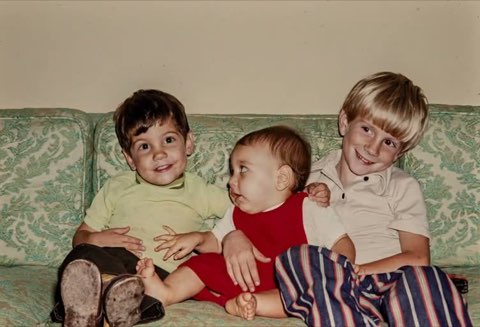
Animate a still image with natural motion after you extract a frame.

Turn a selected frame, illustration, or product image into a short clip.
Give a family or archival frame subtle movement while keeping its character.
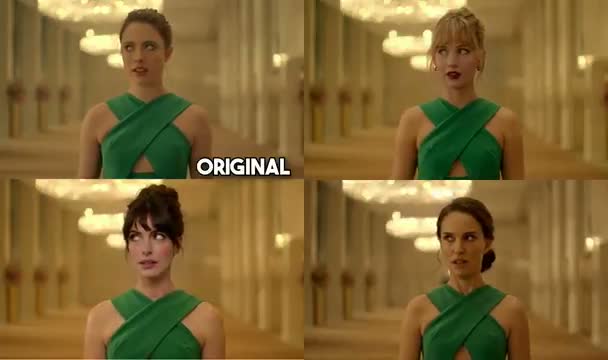
Use a source clip when you need motion-preserving AI video transformation.
Browser-based utility
A video frame extractor turns a moment in a clip into a still image you can download, edit, share, or animate. This page supports precise single-frame capture and interval extraction from local MP4, WebM, and MOV files, with JPG and PNG output ready for the next step. It covers the same practical job people describe as video to frames or video to image.
This video frame extractor captures a timestamped still for download, editing, or animation. Choose a clean frame, download the format you need, and continue to Animate Photo AI when the frame should become a moving portrait, product shot, illustration, or memory clip.
See the next-step workflow
After extraction, each still is labeled by timestamp and offered as JPG and PNG. Inspect the exact source moment, then use the selected image as an input for Animate Photo AI. This video frame extractor keeps the handoff tied to the source timestamp. The same workflow also supports storyboards, thumbnails, quality checks, and photo-to-video experiments.
Core capabilities
Use the timeline, native video controls, or a timestamp down to hundredths of a second. This video frame extractor captures the exact expression, product angle, or transition point you need instead of relying on a screenshot.
Enter an interval such as 0.5, 1, or 2 seconds to build a lightweight image sequence. A 60-frame guard keeps local processing responsive and makes the output easy to review.
Every captured still is rendered twice from the same decoded frame. JPG is convenient for uploads and sharing; PNG keeps lossless detail for compositing, retouching, or archival work.
The source file is read by your browser through a temporary object URL and canvas. It is not uploaded to a server for extraction, which is useful for draft footage and sensitive personal videos.
How it works
Drop a local MP4, WebM, or MOV into the workspace. The video preview loads without a server upload.
Play, pause, scrub, or type a timestamp. Look for a sharp subject, open eyes, clean edges, and minimal motion blur.
Use Capture frame for a single still. Use Extract at interval for a sequence, then review each timestamp before downloading.
Pick JPG or PNG for each result. If the still needs motion, open Photo to video and upload the extracted image as your starting frame from the video frame extractor.
Output decision
The video frame extractor creates both formats from the same decoded frame, so you can choose based on the next job instead of re-processing the source clip.
| Format | Choose it when | Good next step |
|---|---|---|
| JPG | You want a smaller file for upload, email, social posts, or quick review. | Upload to Photo to video or share as a compact reference. |
| PNG | You need lossless detail for editing, compositing, text, or archival use. | Retouch first, then animate the clean still when edges matter. |
Use cases
Creators and editors can use a video frame extractor to pull a representative pose or composition from a rough cut, compare several timestamps, and export a thumbnail without opening a full desktop editor.
Choose the sharpest portrait, pet, product, or illustration frame from existing footage. A deliberate source image gives Animate Photo AI a clearer starting point for subtle motion.
Use interval extraction in a video frame extractor to inspect scene continuity, capture evidence for a feedback thread, or create a compact image sequence for a visual QA pass.
Limits and quality checks
A video frame extractor preserves the source pixels; it cannot repair blur, low resolution, compression blocks, or an awkward crop. Review the still before using it as an animation input.
Current browser limits: each video can be up to 500 MB, one interval run can create up to 60 frames, the minimum interval is 0.1 seconds, and timestamp input supports 0.01-second precision. These are product limits for local processing, not general video standards.
Motion blur: scrub a few frames around the target moment and choose the sharpest one.
Resolution: extraction cannot add detail that is absent from the source video.
Aspect ratio: keep the original crop unless your next tool expects a different composition.
Local limits: long, high-resolution clips use more memory; use a larger interval or a short source segment. These limits help the video frame extractor keep local extraction responsive.
FAQ
Choose a local video, move the playhead to the moment you need, and select Capture frame. For a sequence, enter an interval in seconds and choose Extract at interval. This video frame extractor renders each still in your browser and provides JPG and PNG downloads.
Yes. Use the video controls or timestamp field to find an exact moment, then click Capture frame. The result card includes both a JPG and a PNG download so you can pick the format that fits your next edit.
No. This video frame extractor uses the HTML video element and canvas in your browser. The selected file is represented by a temporary local object URL; it is not sent to Animate Photo AI for extraction.
Use PNG when you need lossless detail or plan to make further edits. Use JPG for a smaller file that is easy to share or upload. Both versions are generated from the same decoded video frame.
Yes. Download the JPG or PNG, then open the Photo to video workflow in Animate Photo AI and upload the still as your image input. A clean result from the video frame extractor is often a better starting point for subtle animation than a random video thumbnail.
Next step
After the video frame extractor finishes, download the frame as JPG for a compact upload or PNG for maximum detail. Then use Animate Photo AI to add controlled movement to the selected portrait, pet, product, illustration, or memory image.
Use the video frame extractor above to capture one moment or an interval sequence, download both practical image formats, and keep your best still ready for the next creative workflow.
Extract frames from a video