Model documentation
Explains checkpoints, code, hardware, supported inputs, and licensing for a specific release.
Character Replacement Workspace
MODEL
Need a first successful run?
CHARACTER IMAGE TO INSERT
JPEG, PNG, JPG, WEBP · max 10MB
SOURCE VIDEO WITH MOTION
MP4, MOV · max 100MB · 3-30s
PRESERVATION PROMPT (OPTIONAL)
Resolution
TOTAL CREDITS
Upload video first
Demo Video
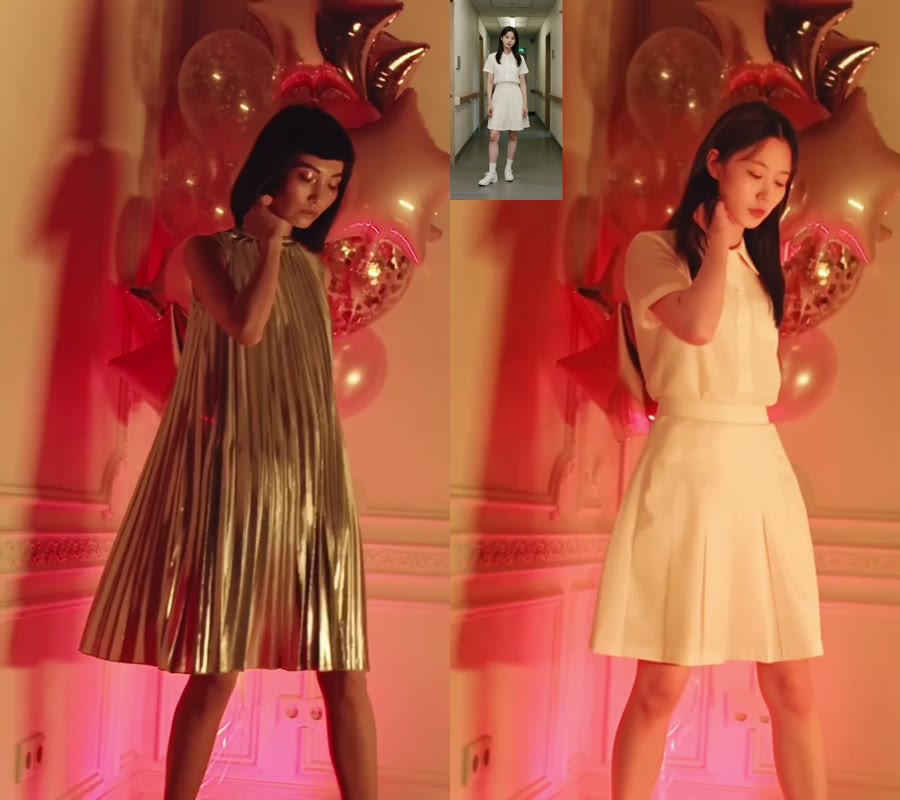
Wan 2.2 Animate demo video
Start a generation to see your latest videos here.
Wan 2.2 Animate guide
Quick answer
Wan 2.2 Animate is a motion-transfer workflow that uses a character reference image for identity and a driving video for movement, timing, and framing. The prompt adds preservation guidance for details such as clothing, lighting, and camera position. The exact controls, model files, and output limits depend on the Wan release or service you choose.
Explore related workflows
These links cover adjacent jobs that appear beside Wan 2.2 Animate searches: direct image animation, scene-preserving replacement, reference-led generation, and video transformation.
Input relationship
Character image: the identity anchor for the face, silhouette, outfit, and visual style.
Driving video: the motion anchor for pose, gesture timing, camera rhythm, and scene framing.
Prompt: the preservation layer for details that the files alone do not fully communicate, such as warm lighting or a fixed camera.
Choose your starting point
People use “Wan 2.2 Animate” to describe several related workflows. Some resources focus on checkpoints or APIs, while others explain hosted tools. The shared idea is the same: animate a character reference by following a driving video.
Explains checkpoints, code, hardware, supported inputs, and licensing for a specific release.
Package the model behind an upload interface. Verify the model version, input rules, privacy terms, and output limits.
Show ComfyUI nodes and settings, with more control but more setup work for local users.
Before choosing a Wan 2.2 Animate resource, decide whether you need a local checkpoint, an API, or a hosted workflow. Then verify that the option accepts both a character image and a driving video.
Core capabilities
A Wan 2.2 Animate test is easier to diagnose when each control maps to one part of the input relationship: identity, motion, preservation, or cost. In a Wan 2.2 Animate workflow, that separation makes it clearer whether a weak result came from the source image, driving clip, or prompt.
Keep a character image as the visual identity source across the clip.
Use a driving video to carry pose, gesture timing, and camera rhythm.
Add short instructions for outfit, lighting, background, and scene continuity.
Review whether identity, pose, camera rhythm, and scene details stay stable across frames.
Workflow checklist
Choose a sharp portrait or full-body frame with a readable face and silhouette.
Start with 3-10 seconds, one subject, stable lighting, and visible gestures.
Name the motion goal, then state what must stay unchanged.
Check identity, hands, edges, occlusion, lighting, and background stability before publishing.
Prompt pattern
A driving clip already contains most of the action. Use the prompt to resolve ambiguity instead of describing a completely new scene. This keeps the Wan 2.2 Animate workflow focused on transfer and makes failures easier to diagnose.
“Transfer the performer’s slow upper-body turn to the reference character. Keep the face, hair, outfit, warm side lighting, camera distance, and background unchanged. Use natural hand motion and avoid extra cuts or a new facial expression.”
If the output drifts, shorten the prompt first. Add detail only after the identity and motion relationship is stable.
Model and workflow decision
| If you have | Use this workflow | Why |
|---|---|---|
| Character image + driving video | Motion control | Transfers visible movement while keeping the image as the identity anchor. |
| Existing scene + replacement image | Replace Character | Swaps the visible subject while preserving the scene context. |
| One still image only | Image to Video | Generates motion without requiring a separate driving clip. |
| Source footage to transform | Video to Video | Uses the original clip as the timing and motion starting point. |
Model availability note: Wan 2.2 Animate may be offered as a checkpoint, API, or hosted workflow. Confirm the release version, accepted inputs, license, and privacy policy before you commit to a tool or local setup.
Choose an implementation
Search results frequently put browser tools and local node graphs next to each other. They are not interchangeable. Use the table below to pick the path that matches your goal before you invest time in setup. For Wan 2.2 Animate, the main trade-off is convenience versus control over the model and its inputs.
| Priority | Hosted service | Local ComfyUI |
|---|---|---|
| Fast first test | Start with a hosted upload flow and minimal local setup. | Install checkpoints, nodes, and dependencies before the first render. |
| Control surface | Use a focused form with constrained inputs and a review step. | Tune nodes, samplers, masks, and hardware settings directly. |
| Best fit | Creators who need a quick proof-of-concept or a managed workflow. | Technical users who need private, reproducible, or deeply customized runs. |
Use cases
Creators with a character sheet and a short performance clip can test identity stability before building a full edit with Wan 2.2 Animate.
Best for: character tests with a driving video
Teams can use a clean mascot or avatar image with a simple driving action for social or concept previews.
Best for: avatar and mascot animation
Artists can compare a Wan 2.2 Animate motion-transfer pass with direct image-to-video to see which input gives better control.
Best for: comparing motion-transfer workflows
Quality control
Use a clear face, body outline, and consistent angle. Tiny or hidden subjects make frame-to-frame identity harder to hold.
Prefer one subject and a readable action. Fast cuts, crowded scenes, and strong blur create more opportunities for flicker.
Treat the first render as a test. Check hands, hair, clothing edges, background shimmer, and lighting before publishing.
For a Wan 2.2 Animate run, treat the first output as a quality check rather than a finished shot. Confirm that identity, motion, and scene continuity hold before increasing duration or complexity.
Wan 2.2 Animate is less predictable in these conditions, so choose a simpler source clip when possible.
FAQ
Wan 2.2 Animate refers to a motion-transfer workflow in which a character reference image supplies identity and a driving video supplies movement, timing, and framing. The available controls and output limits depend on the implementation or model release.
Animate Photo AI is an independent site. Use the official Wan project documentation or repository for release notes, checkpoints, licenses, and source-code details; hosted tools and tutorials may use the same model name without being official releases.
Online availability depends on the service hosting the model. Check whether a provider supports the Wan 2.2 Animate inputs, which version it runs, what limits apply, and whether a trial or paid plan is required before uploading files.
Animation uses a character image as the identity source and a separate video as the movement source. Character replacement starts from an existing scene and swaps the visible subject while preserving the original scene context.
Keep planning
Start with a clear character reference, a short driving video, and one preservation goal. Use the checklist above to compare hosted and local options when you are ready to choose an implementation.
Get Wan 2.2 Animate updatesLast updated: September 1, 2026 · Independent guide. Check the official Wan project resources for release-specific details.