Character image
Use it for: A sharp, front or three-quarter subject with a readable face, outfit, and silhouette
Avoid: Tiny, cropped, blurry, or heavily occluded reference art
Character Replacement Workspace
MODEL
Need a first successful run?
CHARACTER IMAGE TO INSERT
JPEG, PNG, JPG, WEBP · max 10MB
SOURCE VIDEO WITH MOTION
MP4, MOV · max 100MB · 3-30s
PRESERVATION PROMPT (OPTIONAL)
Resolution
TOTAL CREDITS
Upload video first
Demo Video
Wan 2.2 Animate Replace demo video
Start a generation to see your latest videos here.
Continue the Wan 2.2 Animate video workflow
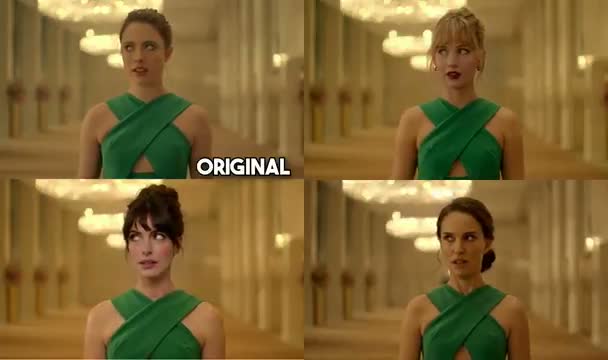
Replace Character uses a replacement character image and a source video. The source video provides motion and framing, while the character image guides who should appear in the result.
Open workflow →
Video to video transforms an existing clip into a new AI video. Upload the source video for timing and motion, then use the prompt to describe what should change.
Open workflow →Reference to video uses an image as the visual guide and a prompt as the motion guide. It is best when the subject, style, product look, or character identity should come from a reference image.
Open workflow →WAN 2.2 ANIMATE REPLACE WORKFLOW
Wan 2.2 Animate is a two-input video workflow for putting a new character into an existing performance. The replacement image defines the subject. The source video supplies movement, expressions, camera timing, and scene context. A clean driving clip is usually more important than a long prompt.
Last updated:
Quick answer
Wan 2.2 Animate replace uses a character image plus a source video: the image defines who should appear, while the video supplies motion, expressions, framing, and scene context. Start with a short, clear clip so you can inspect identity, edges, lighting, and continuity before trying a longer edit.
For the Wan 2.2 Animate workflow, both modes use a character image and a driving video, but the intended output is different. Choose the mode before you spend credits on a difficult clip.
| Decision | Animate | Replace |
|---|---|---|
| Starting scene | A still character image needs motion. | An existing scene already has the motion you want. |
| What changes | The character is brought to life from the reference. | The visible subject is swapped inside the source clip. |
| What should stay | Character identity and requested movement. | Source timing, camera, background, lighting, and action. |
| Best first test | A clear portrait or full-body image plus simple motion. | One subject, short clip, readable silhouette, limited occlusion. |
The Wan 2.2 Animate replace path is the better fit when the original performance, camera, and background already work and only the visible character needs to change.
For a Wan 2.2 Animate replace test, prepare three simple inputs: a subject image, a reference video, and optional preservation guidance.
Use it for: A sharp, front or three-quarter subject with a readable face, outfit, and silhouette
Avoid: Tiny, cropped, blurry, or heavily occluded reference art
Use it for: One main subject, readable motion, stable lighting, and a short 3-30 second scene
Avoid: Fast cuts, crowds, severe blur, or a subject hidden behind props
Use it for: Short instructions about keeping the camera, lighting, wardrobe, or background
Avoid: Conflicting instructions that ask for a different action than the source clip
| Input or setting | Accepted limit | First-test guidance |
|---|---|---|
| Character image | JPG, PNG, or WEBP; up to 10MB | Use a sharp face, outfit, and silhouette. |
| Source video | MP4 or MOV; up to 100MB; 3–30 seconds | Start with a 5–10 second shot. |
| Output resolution | 720p or 1080p | Use 720p while checking identity and edges. |
| Preservation prompt | Optional short guidance | Name the camera, background, lighting, wardrobe, or timing to preserve. |
Start with a 5–10 second shot containing one clearly visible person or character. Keep the camera movement moderate, avoid rapid cuts, and choose a section where the face and hands are not hidden. Test that short segment first, then extend the edit only after identity and edges remain stable.
This conservative first pass isolates input quality from generation settings and makes each retry easier to evaluate.
Reference example showing motion and scene continuity across a source clip. Use it to judge framing and continuity before reviewing your own output.
Use this Wan 2.2 Animate sequence to separate input problems from model problems and keep each retry useful.
Trim to a 5–10 second shot with one primary subject, readable movement, and limited occlusion.
Use a sharp front or three-quarter image with a clear face, outfit, and silhouette.
Describe only the details that must remain stable, such as camera framing, background, lighting, wardrobe, and timing.
Review identity, hands, edges, occlusion, lighting, and scene continuity before extending the edit.
With Wan 2.2 Animate, the failure pattern is usually visible in the inputs. Fix the smallest cause first instead of stacking a longer prompt on top of a difficult shot. A second Wan 2.2 Animate retry should change one variable at a time.
Use a higher-resolution character image, keep the face visible, shorten the clip, and describe the identity details that must remain unchanged.
Start with a simple pose and limited occlusion. Fast hand movement, crossed limbs, and props crossing the body are difficult first tests for any replacement model.
Match the source and reference image angle and lighting. Ask to preserve the scene and use a cleaner clip before adding stylization or a complex wardrobe change.
A model-level relighting or pose module can improve scene fit, but it cannot recover a hidden subject, missing fingers, or an identity that is not visible in the reference image. Treat the first output as a diagnostic pass, not a final guarantee.
Choose a Wan 2.2 Animate replacement path based on how much control you need over the edit and your production setup.
| Need | Best route | Trade-off to know |
|---|---|---|
| Validate the two-input idea quickly | A short Wan 2.2 Animate browser replacement test | Short clips make identity, edges, and motion easier to inspect before scaling. |
| Generate a replacement with guided controls | Replace Character | A hosted workflow keeps upload, model, and credit choices in one place. |
| Change style while keeping timing | Video to Video | It is broader than character replacement and may change more of the scene than intended. |
| Run official weights locally | ComfyUI / API workflow | You control nodes, seeds, and weights, but must handle hardware, setup, and model licensing yourself. |
These Wan 2.2 Animate replace scenarios use the same two-input setup, but each job has a different quality check. Define the job clearly so the source motion and replacement identity are judged against the right goal.
Input: Character image + dance or talking-head clip
Quality check: Check facial identity, hands, and lip or expression continuity before publishing a short social edit.
Input: Stylized character image + brand-safe source motion
Quality check: Keep the silhouette and color details consistent; simplify the prompt so the design is not reinterpreted.
Input: Concept character + blocking or reference footage
Quality check: Use the result to test timing and composition, then expect an artist or editor to clean final edges.
These answers focus on inputs, mode choice, and quality checks for Wan 2.2 Animate replacements.
It is the replacement mode in Wan 2.2 Animate: a character image is inserted into a reference video while the source motion and scene guide the generated result.
Start with a 5–10 second clip containing one clearly visible subject. Check the face, hands, silhouette, lighting, and scene continuity before extending the edit or adding more complex instructions.
Use Animate when a still character should follow a driving video. Use Replace when an existing scene already works and you want to change the visible subject while keeping the scene and motion.
A full-body swap is possible when the source subject stays visible and the character image has a clear silhouette. Start with a short clip and inspect hands, feet, clothing edges, and occlusion before scaling up.
Choose a ComfyUI or API workflow when you need local weights, custom nodes, reproducible seeds, or direct control of the official Wan 2.2 pipeline.
Use the project documentation to confirm model scope, local setup, and workflow details before choosing an implementation path.
Next step
If you came for a Wan 2.2 Animate replacement test, start with a short source clip and a clear character image. If you need a browser-based character replacement workflow, continue to Replace Character. If you want to transform the whole clip instead, use Video to Video.
Start a Wan 2.2 Animate replace test