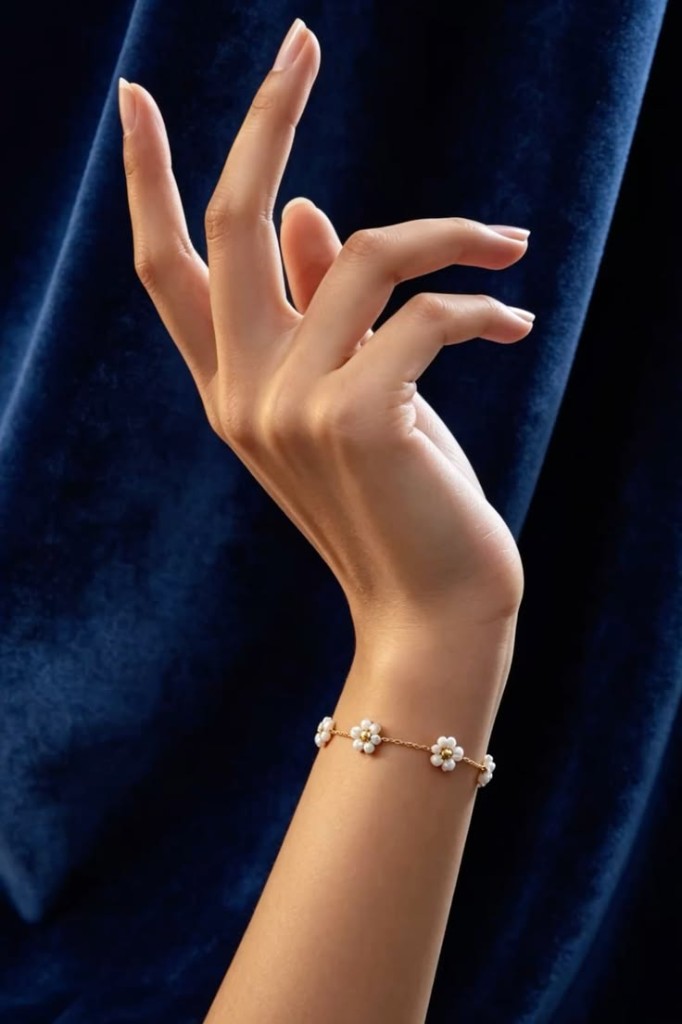
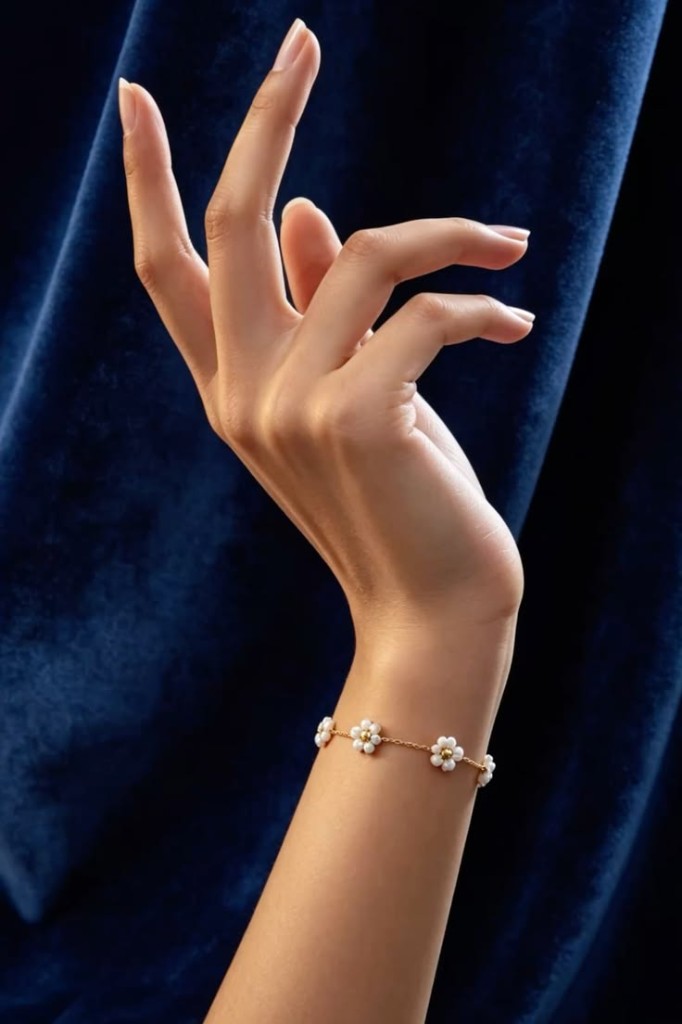
Input 1: hand photo
Show the intended finger, nail, and lighting. A sharp, front-facing crop usually gives a cleaner virtual ring try on placement.
 AnimatePhoto
Virtual Ring Try On
Place a ring on your hand photo
Add the hand and ring photos
Use a hand photo plus a clear ring product image
Describe the ring placement
Describe the final composition
Select model and canvas
Generate
Preview
A real example try-on still is shown until you generate
Inputs
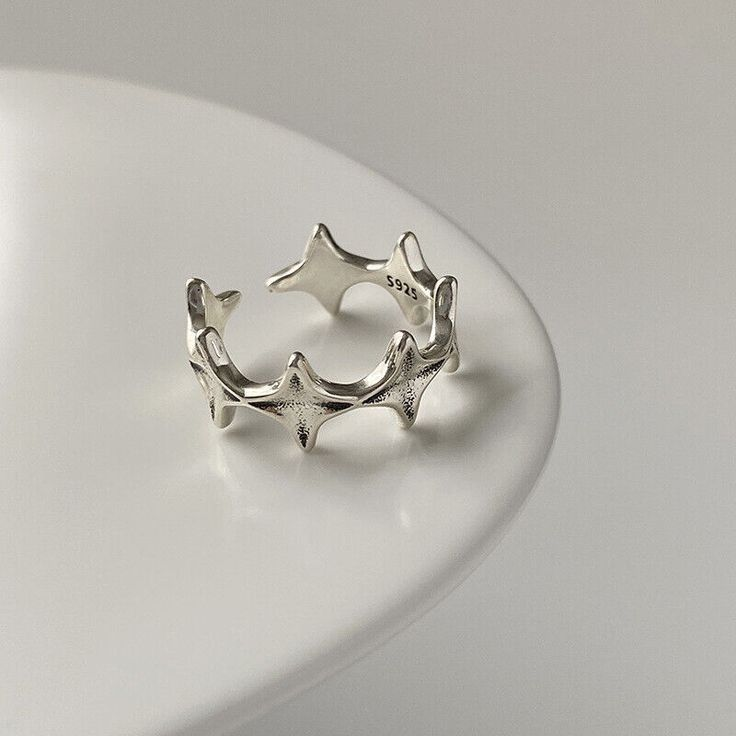
Virtual ring try on example
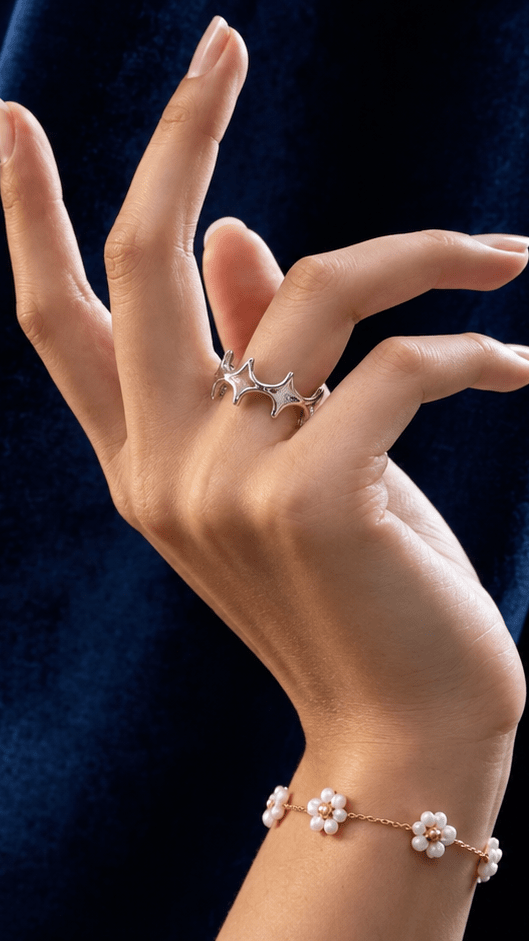
Example result
Generate to replace this preview with your own image.
Selected model
GPT Image 2.5 Flare
Estimated time
10-60 sec
Generation cost
40 credits
Continue a jewelry workflow
After your ring preview still is ready, continue with a broader composition, product motion, or cleanup workflow.
Combine other product photos
Use broader multi-image composition controls.

Animate the try-on still
Add subtle motion after the ring preview looks right.
Turn a product photo into video
Create a short clip from a finished jewelry photo.
Refine the finished preview
Crop or clean up the try-on image before sharing.
Jewelry preview from two photos
Virtual ring try on lets you preview how an engagement ring, wedding band, or fashion ring looks on your own hand before you buy. Upload a hand photo and a ring image, describe the finger placement, and review the generated preview for metal color, stones, and scale.
Last updated:
virtual ring try on means combining a hand photo with a ring product image to create one preview of the ring on your finger. It helps shoppers compare styles online without a store visit or AR app.
To run a virtual ring try on, upload a clear hand photo and a ring product image, describe the finger and placement, then generate a composed preview. Sign-in is required and the lowest model starts at 25 credits.
Searches for try on virtual engagement rings, virtual engagement ring try on, or engagement ring virtual try on all map to the same two-photo method. Use a front-facing ring shot and a hand crop that shows the intended finger clearly.
Evidence and expected output
A finished virtual ring try on still should keep your hand pose and skin tone while placing the uploaded ring design on the chosen finger. The examples below show the hand photo (input 1), ring photo (input 2), and a composed try-on still from this workflow.
Show the intended finger, nail, and lighting. A sharp, front-facing crop usually gives a cleaner virtual ring try on placement.
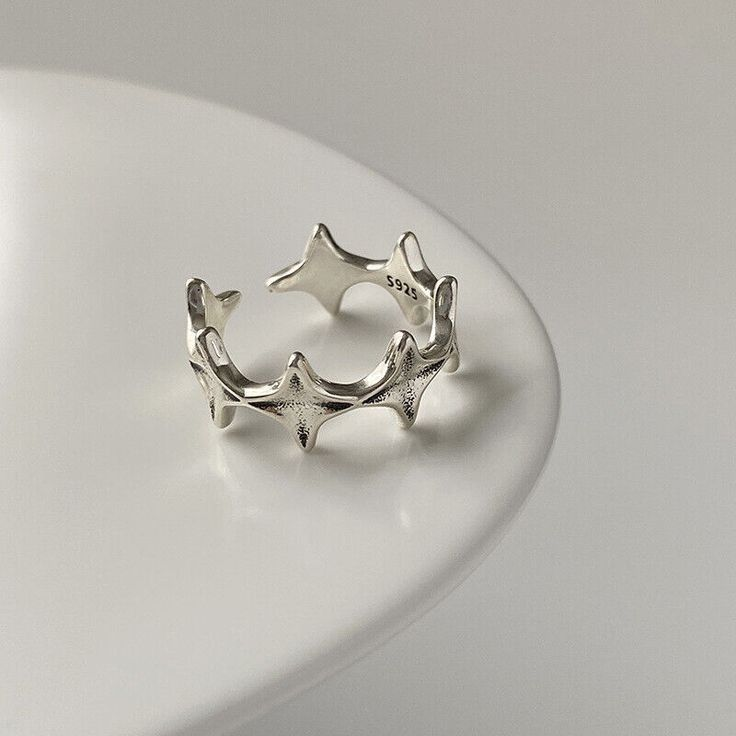
Show the complete band, setting, stones, and metal finish. Packaging or extreme crop makes design matching harder.
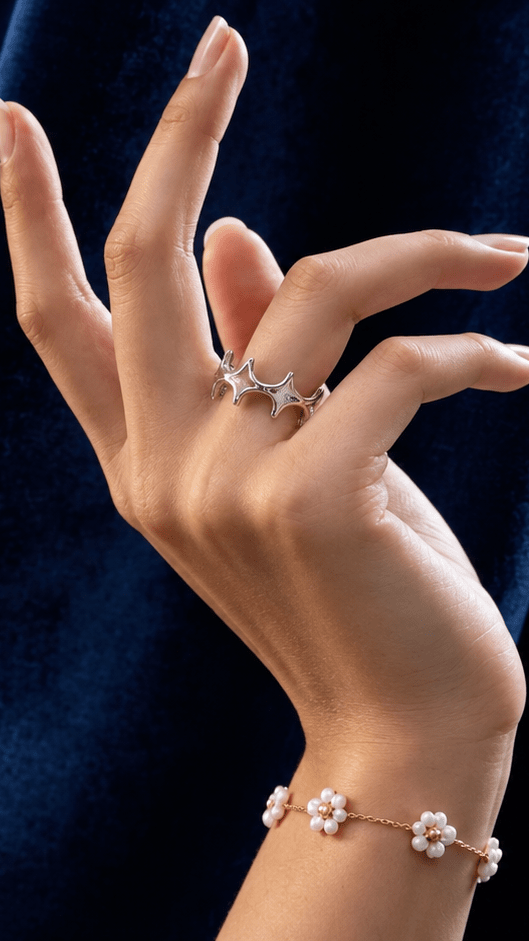
Expect one composed image for style comparison. Label it AI-generated, and confirm size with a jeweler before purchase.
Source evidence for virtual ring try on: a hand photo (input 1), a ring product photo (input 2), and an example composed try-on still. Label AI-generated results clearly.
Core capabilities
Each control answers one composition question. Source images define the hand and ring. The prompt defines finger placement. The canvas defines the final frame.
Start a virtual ring try on with a hand photo that shows the intended finger, then add a ring product image. Optional third and fourth references can add another angle or lighting cue when each has a defined role.
The virtual ring try on prompt can require matching metal color, stone shape, setting height, and band thickness from the product photo while the hand pose stays stable.
Choose square, landscape, portrait, widescreen, or vertical output for a product card, chat share, or social post before the model creates the composition.
After generation, the virtual ring try on image is stored for on-page preview and download. Compare it with both source photos and look for finger, metal, stone, and shadow changes before buying decisions.
Four-step workflow
A virtual ring try on request works best when the prompt is focused and the source photos are compatible. Work through these steps, then change one instruction at a time if the first result needs refinement.
For a virtual ring try on, use a clear hand photo that shows the target finger and a separate ring product image with the full design visible. JPG, PNG, and WebP files up to 10MB each are accepted.
State which finger should wear the ring, how the band should sit, and which metal, stone, and setting details must stay true to the ring photo.
Select 1:1, 4:3, 3:4, 16:9, or 9:16 based on whether you need a product card, social post, or wider hand crop. Most jewelry drafts work well at 1:1 or 3:4.
A virtual ring try on generation starts at 25 credits after sign-in and usually finishes in about 10 to 60 seconds. Review finger contact, ring scale, metal color, stones, and shadows before downloading.
Input decisions
The best starting pair has one image that defines the hand and another that clearly shows the complete ring design. Use the smallest number of references that answers the placement question.
| Input | What it should show | Why it matters | Check first |
|---|---|---|---|
| Hand photo | The intended finger, nail, and hand pose | Sets the hand pose and lighting for virtual ring try on | Finger fully visible without heavy blur or extreme crop |
| Ring product image | Band, setting, stones, and metal finish | Gives the model the jewelry design to place | Complete ring visible, not blocked by packaging |
| Optional reference | Another ring angle or lighting cue | Adds one missing visual role without crowding the prompt | It contributes something the first two do not |
Model and credit guide
For virtual ring try on, available image-combining models trade off credits, input capacity, speed, and output detail. Use this table to choose a starting point, then compare the generated result with both source photos.
| Model | Credits | Model ceiling | Profile | Best for |
|---|---|---|---|---|
| Meta Muse Image Edit | 25 | 10 | Lowest-cost multi-reference composition | Lowest-cost placement tests with two clear photos |
| Grok Imagine 2.0 | 30 | 5 | Strong prompt following for people and scenes | Detailed finger placement and jewelry prompts |
| Nano Banana Edit | 30 | 10 | Flexible multi-image editing and composition | Flexible multi-image jewelry composition |
| Nano Banana 2 Lite | 30 | 10 | Fast visual-reference generation at 1K | Fast 1K drafts while comparing styles |
| Seedream 5 Lite | 35 | 14 | Detailed 2K output with broad aspect-ratio support | Higher-detail 2K keepers for catalog checks |
| GPT Image 2.5 Flare | 40 | 16 | Reference-faithful edits for people and product placement | Default for virtual ring try on detail and metal fidelity |
| GPT Image 2.5 Sunburst | 40 | 16 | Detailed creative direction for family portraits | Higher-control jewelry placement when Flare needs more direction |
Credit values are the current generation requirements shown in the workbench. Model ceiling is the provider limit; this page currently accepts two to four uploads. Provider pricing and model availability can change, so confirm the selected model before generating.
Use the lowest-cost model to test placement before choosing a higher-detail option.
Use cases
Each scenario keeps the starting input, editing action, and expected result explicit so the generated image has a clear job.
Engagement shopping
Start with your hand photo and a retailer engagement-ring image. Run a virtual ring try on for solitaire, halo, or vintage settings, then share the still with a partner before visiting a store.
Online jewelry sellers
Use a model hand photo and a catalog ring shot. Generate a virtual ring try on still for PDP enrichment, ads, or social posts while keeping the original ring design as the visual source.
Wedding band pairing
Upload a hand photo that already shows an engagement ring, or run two separate drafts. Keep prompts focused on one band at a time so the result stays readable.
Method comparison
Choose the method that matches your job. Photo-based virtual ring try on is built for still product cards from two uploads, not live camera overlay or certified sizing.
| Method | What you need | Best for | Not for |
|---|---|---|---|
| Photo virtual ring try on | Hand photo + ring product image | Style, metal, and stone preview on your hand | Live camera fitting or certified finger sizing |
| Live AR try-on | Phone or webcam session | Real-time camera overlay while you move | Quiet product-card stills without a camera session |
| In-store fitting | Physical ring and jeweler tools | Exact size, weight, and metal confirmation | Instant online comparison across many SKUs |
Limits and quality checks
A virtual ring try on result is AI-generated, not a live AR overlay or a jeweler sizing certificate. It can create a convincing jewelry preview, but it cannot guarantee exact carat scale, metal chemistry, or finger measurement.
Use clear hand and ring photos with compatible angle and lighting when realism matters.
Inspect finger anatomy, band contact, metal color, stones, and reflections at full size.
Avoid occluded fingers, deep shadows, or extreme metal glare when placement accuracy matters.
Do not upload images you lack permission to use or files that contain sensitive information.
Do not treat the preview as an accurate ring-size measurement.
Label a virtual ring try on result as AI-generated when sharing it publicly.
Questions and answers
Direct answers about inputs, engagement-ring drafts, pricing, and realistic limits of a virtual ring try on preview.
A virtual ring try on creates a new image that places a selected ring onto a hand photo. It is a visual preview for style and placement, not a live AR fitting and not a guarantee of real-world ring size.
Upload a clear hand photo and an engagement-ring product image, keep the placement prompt focused on one finger, then generate and compare the metal, stones, and scale with the source photos. Repeat with another ring image when you want a second style comparison.
Virtual ring try on runs in the browser with two uploaded photos. You describe finger placement, choose a canvas, and generate a composed preview. No camera AR session or app install is required.
No. A virtual ring try on preview can suggest visual proportion on the uploaded hand, but it cannot calculate an accurate finger size or certify fit. Confirm measurements with a jeweler before buying.
A virtual ring try on request requires an account and credits; the lowest-cost model starts at 25 credits. It is not currently advertised as a free unlimited generation service.
Related next steps
After a virtual ring try on still is reviewed, refine it, animate it for ads, or browse nearby product-motion tools.
Make a final crop or cleanup before sharing the jewelry still.
Add subtle motion once the ring placement looks right.
Continue from a jewelry still into product-ad motion ideas.
Check the available credits before creating another virtual ring try on variation.
Start with two photos
Upload one hand photo and one clear ring image, describe the finger placement in plain language, and review every jewelry detail before you download your virtual ring try on preview.
Start virtual ring try on