Compose multiple sources
The AI Image Combiner accepts two required images and up to two optional references. Inputs can contribute a subject, object, background, material, color palette, or style cue to one generated image.
 AnimatePhoto
AI Image Combiner
Source images
Output
Your combined image will appear here
Add at least two images, describe the composition, and start the generation.
Multi-image composition tool
Combine two to four photos, product shots, subjects, or visual references into one new image. Control what comes from each source with a written prompt, then choose the output shape before you generate.
Last updated:
The AI Image Combiner turns 2-4 uploaded images into one new composition. The output is a generated asset rather than a pixel-preserving layer merge.
Upload JPG, PNG, or WebP files up to 10MB each, assign every source a role, select one of five aspect ratios, and generate for 45 credits. If a charged request fails, the generation handler issues an 45-credit refund.
The tool supports product scenes, creative composites, character and background combinations, and concept exploration. Review faces, text, logos, hands, and small details before using the result.
Real product workspace
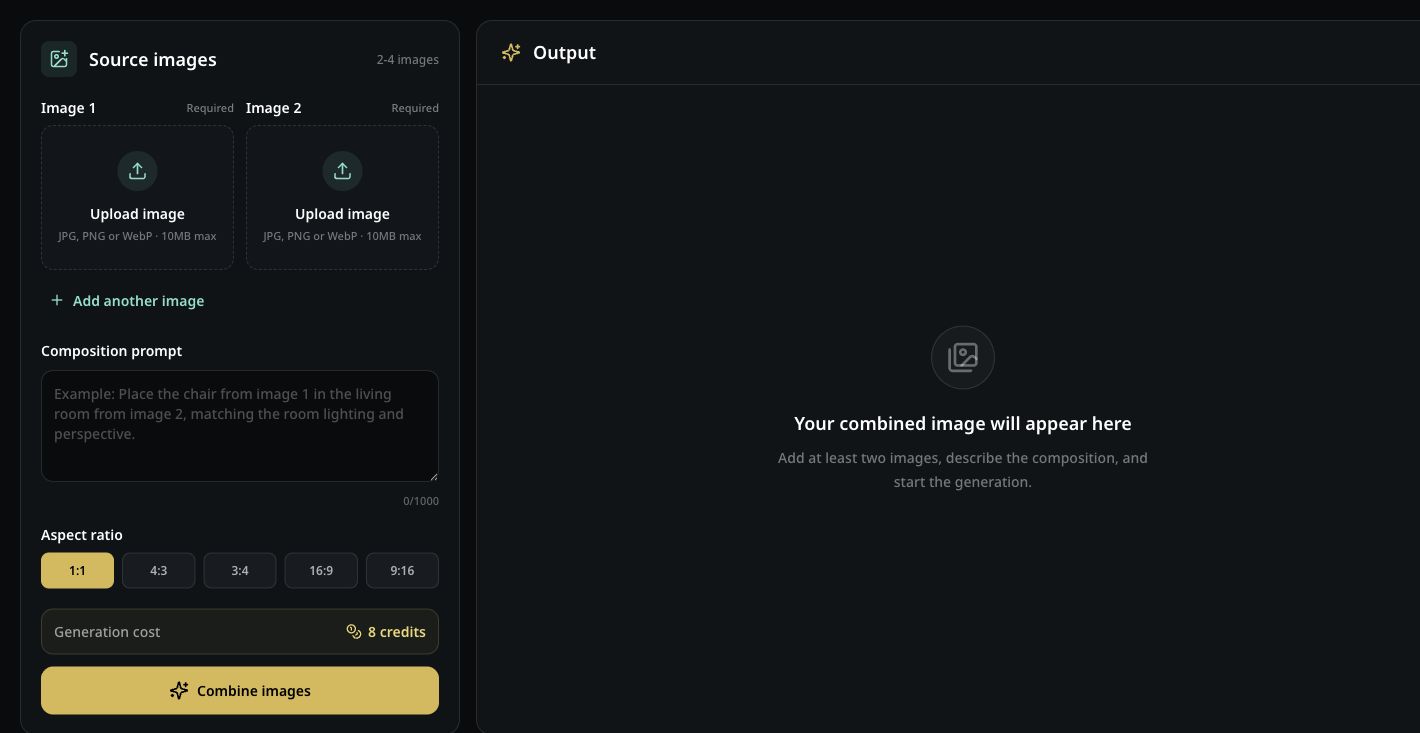
The AI Image Combiner screenshot shows the actual workspace delivered on this page: multi-file upload, a composition prompt, five output ratios, server-enforced credit charging, and a result area with a download action. It is a product-interface record, not a staged model output.
A generated AI Image Combiner result appears in the same output panel after a signed-in request completes. Static sample output is intentionally omitted until it can be generated and verified with production provider credentials.
Core capabilities
The AI Image Combiner is focused on one job: using several visual inputs to create a single new composition. Each control changes either the source material, the relationship between sources, or the final canvas.
Four-step workflow
The AI Image Combiner works best with a narrow instruction that is easy to evaluate. Build the result in four steps, then change only the part that missed your intent.
The AI Image Combiner accepts JPG, PNG, or WebP files up to 10MB each. Start with clear images that show the subjects, objects, or backgrounds you want to carry into the final composition.
Tell the model which element comes from each image, where it should appear, and how lighting, perspective, color, or style should match. Specific relationships work better than a list of unrelated keywords.
Select square, landscape, portrait, widescreen, or vertical output before generating. Pick the ratio for the final placement so the model does not have to invent a second crop later.
Run the AI Image Combiner for 45 credits, compare the result with every source, and download the stored output. If an important detail drifted, revise one instruction at a time and generate again.
Input decisions
Use the fewest compatible sources required to explain the composition. Every added image should contribute a distinct subject, object, background, material, palette, or style role.
| Input count | Best input pattern | Recommended use | Check before download |
|---|---|---|---|
| 2 images | One subject or object + one scene | Product placement, background change, simple composites | Scale, edges, shadow direction, perspective |
| 3-4 images | Distinct roles for every source | Multi-subject scenes, props, palette or style references | Missing sources, duplicated objects, visual priority |
Output decisions
Choose the output ratio for the channel where the combined image will be used. A matching canvas reduces the need for a second crop and helps the model reserve space around the main subject.
| Aspect ratio | Best source framing | Recommended use | Check before download |
|---|---|---|---|
| 1:1 | Centered or balanced sources | Catalog images, square posts, and thumbnails | Subject cropping and usable space around the edges |
| 4:3 / 3:4 | Landscape or portrait sources with moderate context | Web graphics, posters, product scenes, and portraits | Headroom, product scale, and background continuity |
| 16:9 / 9:16 | Sources with room to extend the scene | Banners, video covers, stories, reels, and vertical ads | Invented background details near extended edges |
Use cases
The clearest AI Image Combiner requests assign a role to every input. These three patterns begin with different source material but all end in one reviewable composition.
Ecommerce and ads
Use the AI Image Combiner with a clean product photo and a room, desk, landscape, or campaign setting. Tell the AI Image Combiner to place the product at a stated scale and match the destination scene's light direction. The expected output is a concept image for review, not a geometry-accurate catalog master. Inspect packaging text and product edges.
Creators and storytellers
Use the AI Image Combiner to bring separate people, characters, props, or locations into one scene, then describe who appears where. Add a third reference only when it contributes a clear role such as wardrobe or atmosphere. The generated composite can support a storyboard, thumbnail, poster draft, or social concept after faces and hands are checked.
Designers and teams
Combine a layout reference, material detail, and color or style image into one concept. State which reference controls composition and which should influence appearance only. The output helps compare directions quickly, while final typography, logos, and production details remain a manual design step.
Quality and safety
The AI Image Combiner is generative rather than pixel-preserving. Treat the result as a new image influenced by the sources, not as a guaranteed cut-and-paste edit.
Compare faces, hands, logos, labels, text, and small product features with the originals at full size.
Use sources with compatible camera angle and lighting when realism matters; conflicting references require more invention.
Do not upload confidential images or material you lack permission to use. Generated content may still require disclosure.
If the result ignores one source, shorten the prompt and assign an explicit role to each numbered image.
Questions and answers
Direct answers about inputs, image quality, detail preservation, and storage in the current tool.
An AI image combiner uses multiple source images plus a written instruction to create one new composition. It can transfer an object, subject, setting, or visual style while trying to make lighting and perspective feel consistent.
Yes. Upload two photos, identify what should come from each one, and describe the final layout. You can also add a third or fourth reference when the composition needs another subject, prop, or style cue.
The upload flow accepts JPG, PNG, and WebP images up to 10MB per file. Clear, well-lit inputs with visible edges usually give the model more reliable information than tiny, blurry, or heavily compressed files.
The model can carry recognizable details into a new scene, but exact identity, logos, text, hands, and small product geometry may change. Inspect those areas at full size and regenerate with a narrower instruction when accuracy matters.
Uploaded images are processed to complete the requested generation, and the current Privacy Policy says uploaded content is not used for other purposes without consent. The policy does not promise a fixed retention period, so avoid sensitive personal or confidential images. Read the Privacy Policy.
Related next steps
After the AI Image Combiner creates a finished composition, use it as a still image, prepare it for animation, or review the credit options before making more variations.
Upload the combined still to the image-to-video workflow and describe the motion you want.
Choose a model, duration, resolution, aspect ratio, and sound setting for a new video.
Compare the available credit options before generating more compositions or videos.
Ready to compose
The AI Image Combiner works best when you upload two clear images, assign each source a role in the prompt, and generate one new composition in the ratio you need.
Combine images now